Case Manager Automations
Understanding Automations
All automations are made up of a trigger and one or more actions. Optionally combined with a condition.
Example
(trigger) After indexation
(condition) Custom query (type:(“mail”))
(action) Create concept redactions: Regexes to run during redacting = Email before @
The first part is the trigger of the automation rule. Triggers describe events that should trigger the automation rule. In this case after indexation is finished the automation is being triggered.
The second part is the condition. Conditions can limit an automation rule to only work in your specific use cases. In the example, the custom query (type:(“mail”)) is executed. The actions of this automation only apply to this set of mails.
Conditions are not mandatory. If no condition is added, the actions are performed on the entire dataset.
The third part is the action, which will be performed when a rule is triggered and the condition is met. In this case, the regex with name ” Email before @ “ is executed on the relevant mails after which the draft redactions are created.
Creating Automations
You can find the Automation settings page here: Manage > Process > Automations
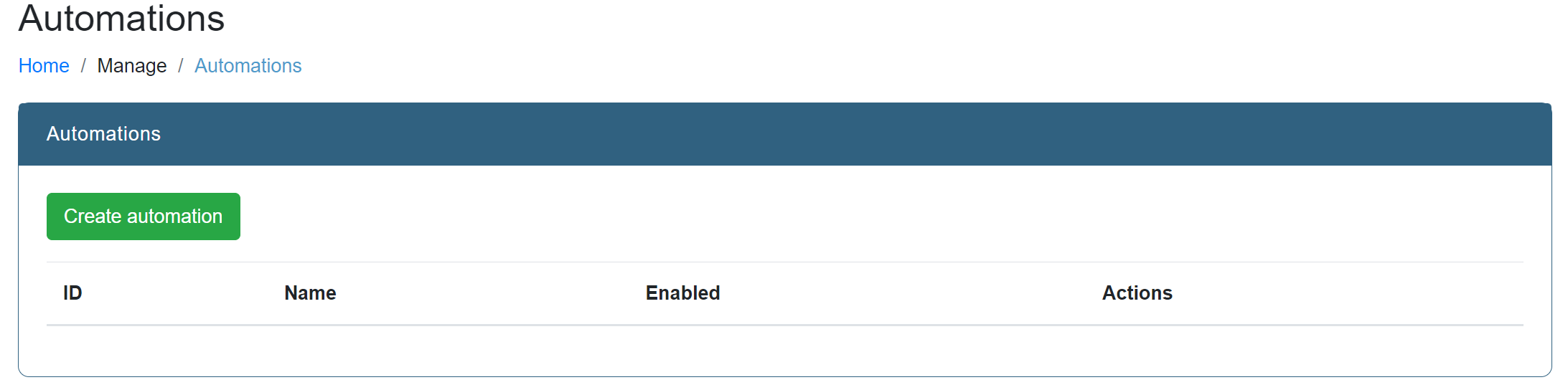
This page contains an overview of the existing automations. You can create, modify and delete automations here.
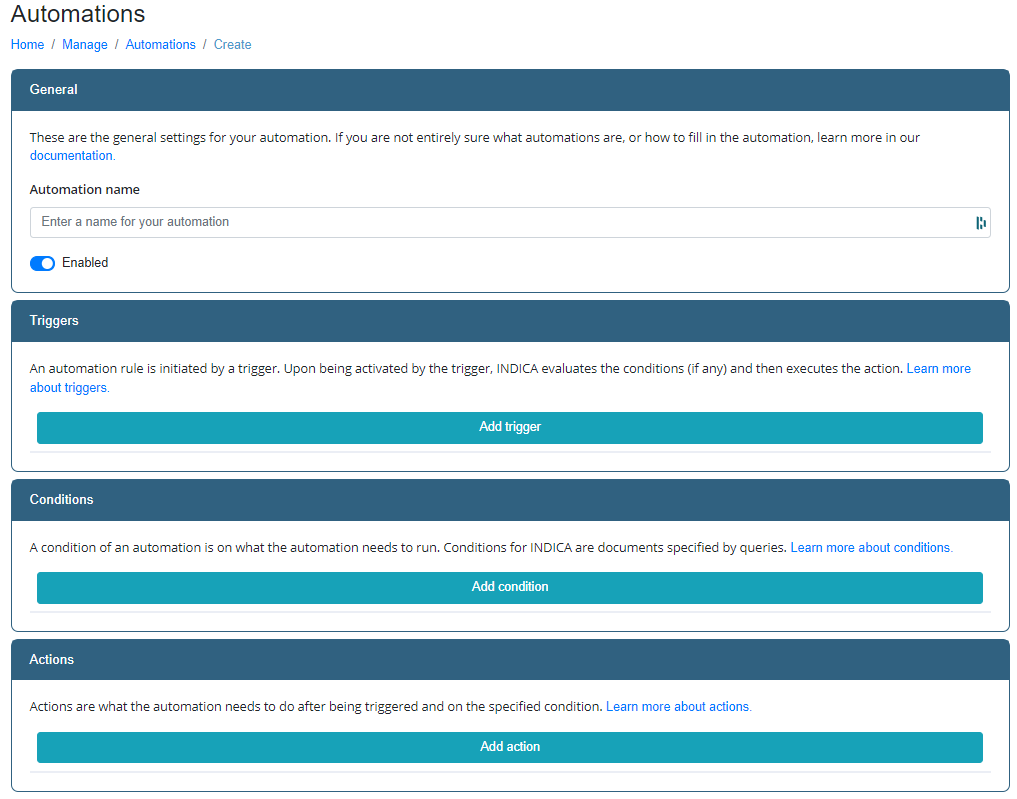
After clicking on Create automation, a page appears where you can set the automation. This page consist of a section for general settings, a section for the triggers, conditions and actions and a section for summary.
General
Enter a descriptive name for the automation. Select enabled or disabled. When disabled, the automation will not run automatically.
Triggers, Conditions, Actions
The following triggers, conditions and actions are available:
Triggers: After index, Workflow state change
Conditions: Saved queries, Custom queries
Actions: Redact (create concepts or apply redactions)
For a detailed explanation for triggers, conditions and actions, see the chapter Triggers, Conditions and Actions .
Summary
A summary of the automation will be shown here.
Set Triggers, Conditions and Actions
Triggers
Click on the “Add trigger” button and select an option:
After Index: Triggers actions automatically after indexation
- Workflow: Triggers actions automatically after a state change in a workflow.
When you choose workflow, click on the arrow and choose a Workflow state.
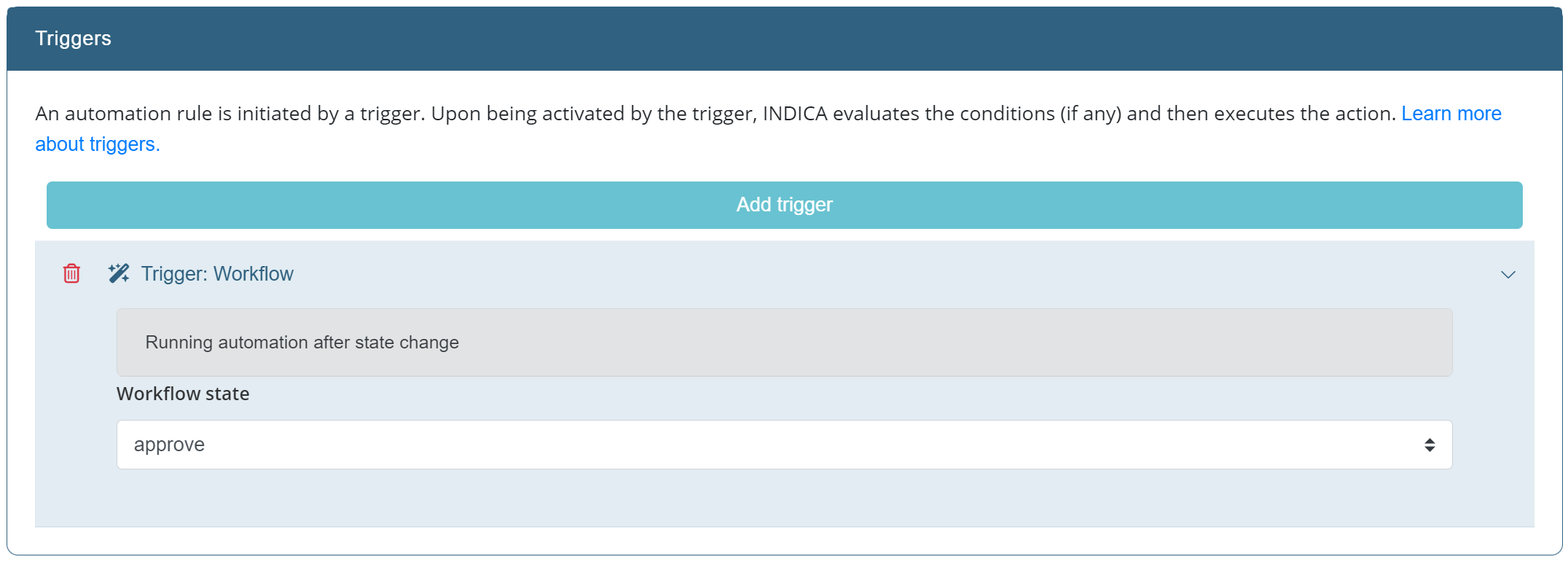
There is only one trigger per automation allowed.
Conditions
Click on the “Add condition” button and select an option:
- Saved queriesAfter selecting saved queries, click on the arrow > behind condition: saved queries.A list of saved queries appears for you to choose from.If you want to add a query, go to the homepage to create a saved query. Or use the custom query option below.
- Custom queryAfter selecting custom query, click on the arrow > behind condition: custom queryAn input field for a query and a filter list appear.Only one condition per automation allowed.
Actions
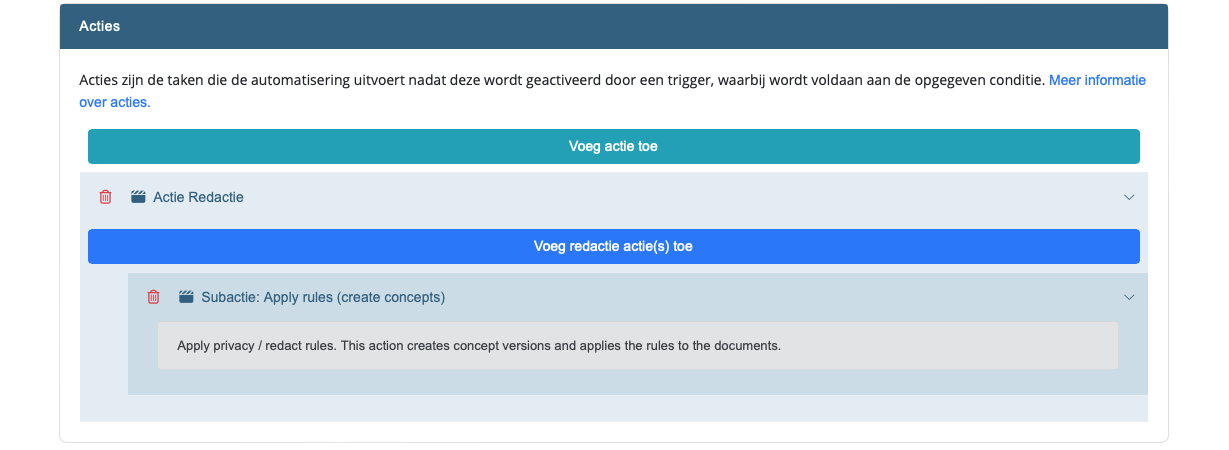
Redact is the only option available. More actions will be available in the future. The redact option consists of two sub actions, namely:
Create concept redactions: Applies created privacy rules by marking the privacy items throughout files.
Apply redactions: This action finalizes concept versions and applies the final redactions.
There are multiple actions per automation allowed.
To add an action you can do the following:
Click on the “Add actions” button and select Redact.
After selecting redact, click on the arrow > behind Action: Redact
Click Add redact action(s)
Choose between sub actions:
- Apply rules (create concepts)Choose this option if you would like to apply the rules created in the privacy items or previewer.
- Apply redactionsChoose this option if you would like to finalize concept versions and apply redactions automatically.