Case Administration
The case administrator role in INDICA is a special role where users can be assigned to be the administrators of all the cases and users on the appliance. They do not have system setting permissions like the appliance administrators do, but are able to create and edit cases, as well as restoring and archiving them. Case Admins are also allowed to create new users, assign roles to them and assign them to cases as needed.
Dashboard Overview
On this page you can see the case admin dashboard.
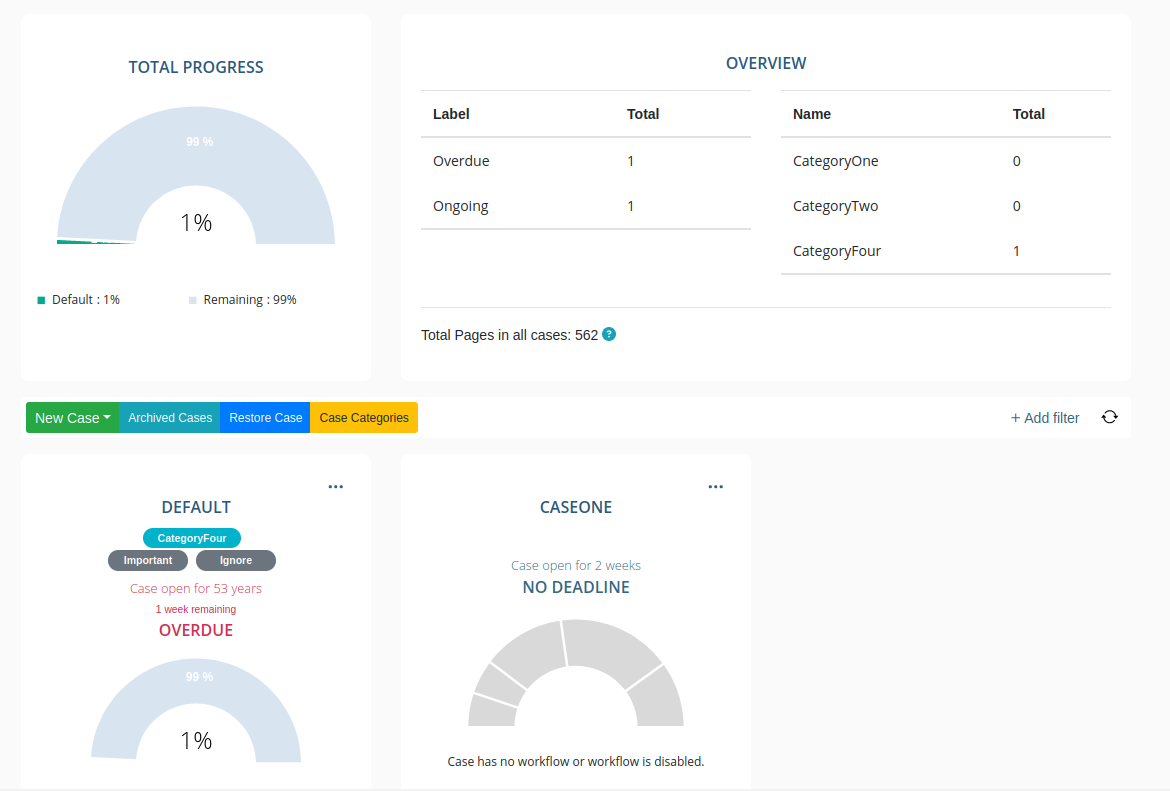
Some details about the numbered sections below:
- Progress Chart
This chart shows the total progress of documents moving through workflows in each of the cases. If you do not have any workflows in any of the cases, then this will result as it being evaluated as 0%.
- Overview
This is a general overview of all the cases. There are two tables here: on the left, shows the number of cases that are overdue, ongoing, closed, etc. The right table shows categories and how many cases have those categories assigned. On the bottom of this section there is also a number of the total amount of pages. This is the total number of processed pages, i.e. pages that have been converted to PDF.
- Toolbar
This toolbar has three actions for the user - creating cases, seeing a list of archived cases, and restoring cases from an archive file. You can also create case categories through the toolbar. On the right, you can also select a filter to filter through cases by categories and deadlines. You can also refresh the page to see updates to cases.
- Cases
The bottom half of the case admin page shows information about each of the cases open on the appliance. There is some information given here:
the name of the case,
the categories associated with the case,
how long the case has been open and whether it is closed, ongoing or overdue,
the workflow progress graph.
Using the dashboard
There are a few things that can be done from the case admin dashboard, either through the toolbar in the middle of the dashboard or through the case tiles below the toolbar.
Toolbar

On the left side of the toolbar, you have multiple options.
New Case - create a new case for the appliance. You can select to create a case from a pre-configured template or manually with a form.
Archived Cases - see a list of archived cases.
Restore Case - restore a case from a previously archived case.
Case Categories - manage available categories and create new ones.
Create Users - create new users.
Redact Settings - option to change the Redact Settings.
General Settings - option to change the general settings.
On the right side of the toolbar, you will find a filter and a refresh button. The refresh button will refresh the case information, and the filter allows you to filter through the open cases by the date of the deadline (if set) and (sub)categories.
Additionally, a search box is provided to search for cases by name. To search, enter one or more characters to filter the cases by name. This search box is not case-sensitive.
Case-by-case management
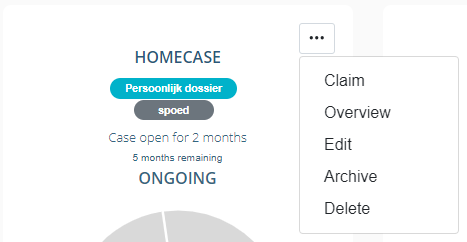
When clicking on the dotted menu on each case “tile” from the dashboard, the user has multiple options:
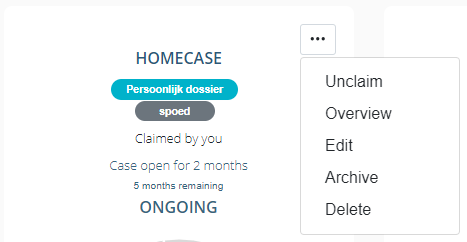
Claim/Unclaim - allows the user to claim or unclaim the case.
Overview - allows the user to see extra information about the case.
Edit - allows the user to edit the case.
Archive - allows the user to archive the case.
Delete - allows the user to delete the case.
When a case is claimed it is displayed on the tile. The user also has the option to unclaim the case.
If a user clicks the tile itself, they will be redirected to the search page for that specific case.
You can read more about the functionality available here under Case Management