Case Categories
Case administrators can assign categories and sub-categories to a case. Each case can have one category and multiple sub-categories. Examples of case categories are things such as “Investigation” or “WOO”, and sub-categories can further label cases such as “Important”.
This page will show you how to assign categories to cases, as well as how to create new ones.
Category Creation
There are two ways of creating categories in the case admin panel: either through creating and editing a case, or through the case categories overview.
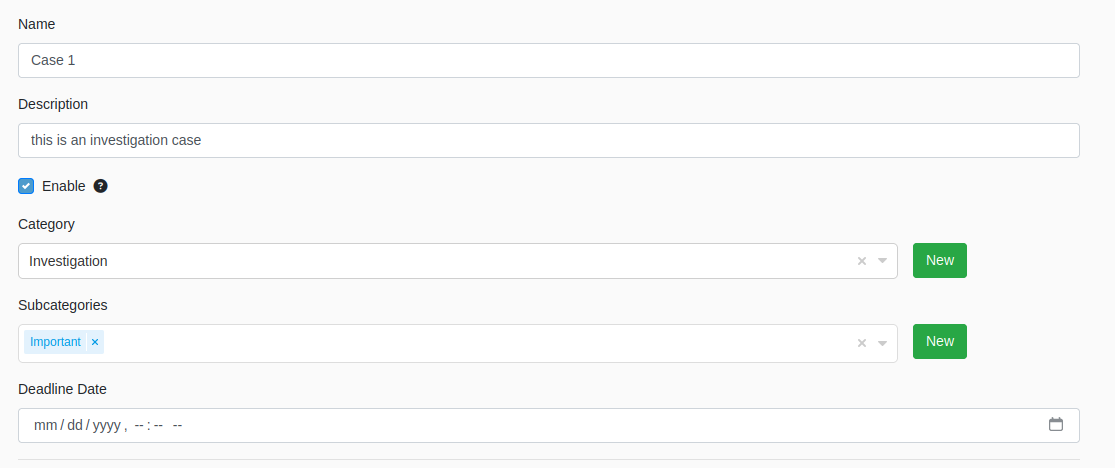
When editing a case, you will notice a button through which you can quickly create a category or a subcategory. This does not allow to set a description, however, you can set a description in the category overview.

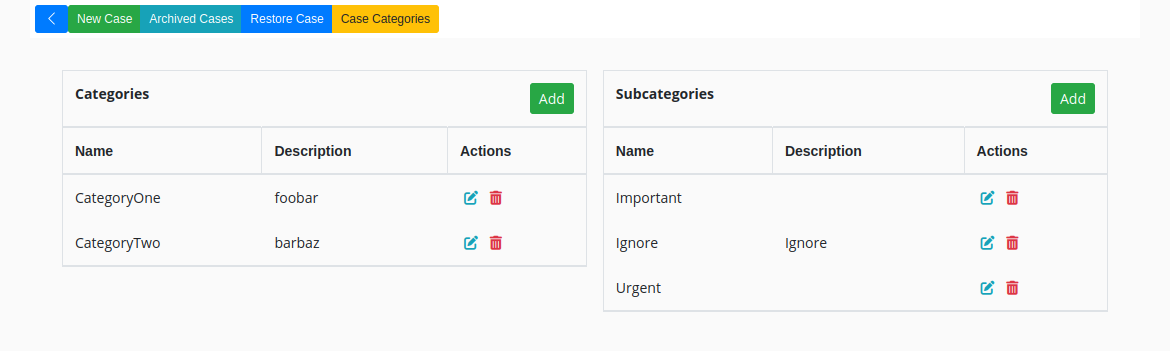
In the case overview, you can edit and delete categories by clicking the “Case Categories” button in the toolbar. Please be aware that if you delete a category from the overview, it will also delete the category from the cases it is attached to.
Assiging Categories
In order to assign a category or change existing ones, you can click the dotted menu on a case tile, select “edit”, and then you can use the dropdowns to select categories or sub-categories for a case.