Redact Settings
These settings allow you to customise all things redaction in the advanced PDF viewer, as well as some settings with redaction with regards to automations in INDICA.
Note
The Advanced PDF Viewer is not available on all INDICA appliances.
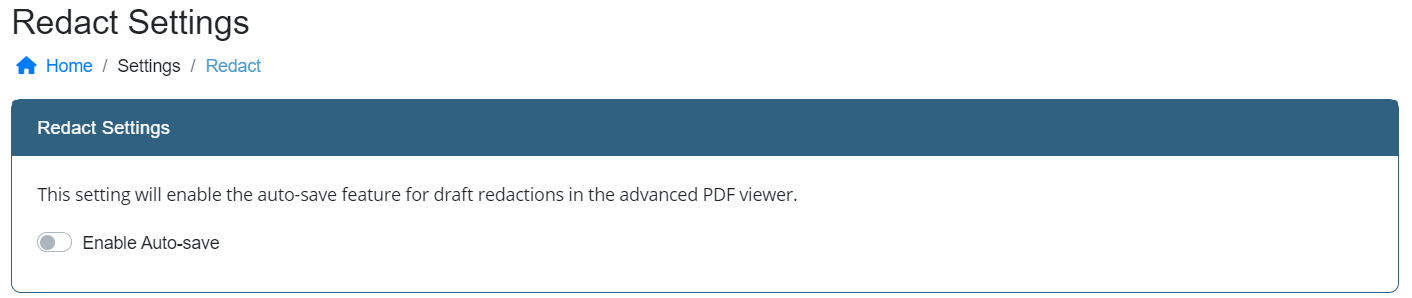
Auto-save
The first option is to auto-save redaction drafts. After drawing redactions, the draft needs to be saved manually. When this setting is enabled, this is not necessary anymore. The auto-save feature will only save the drafts of the redactions, applying them permanently to the document still needs to be done manually.
Redaction Inclusions
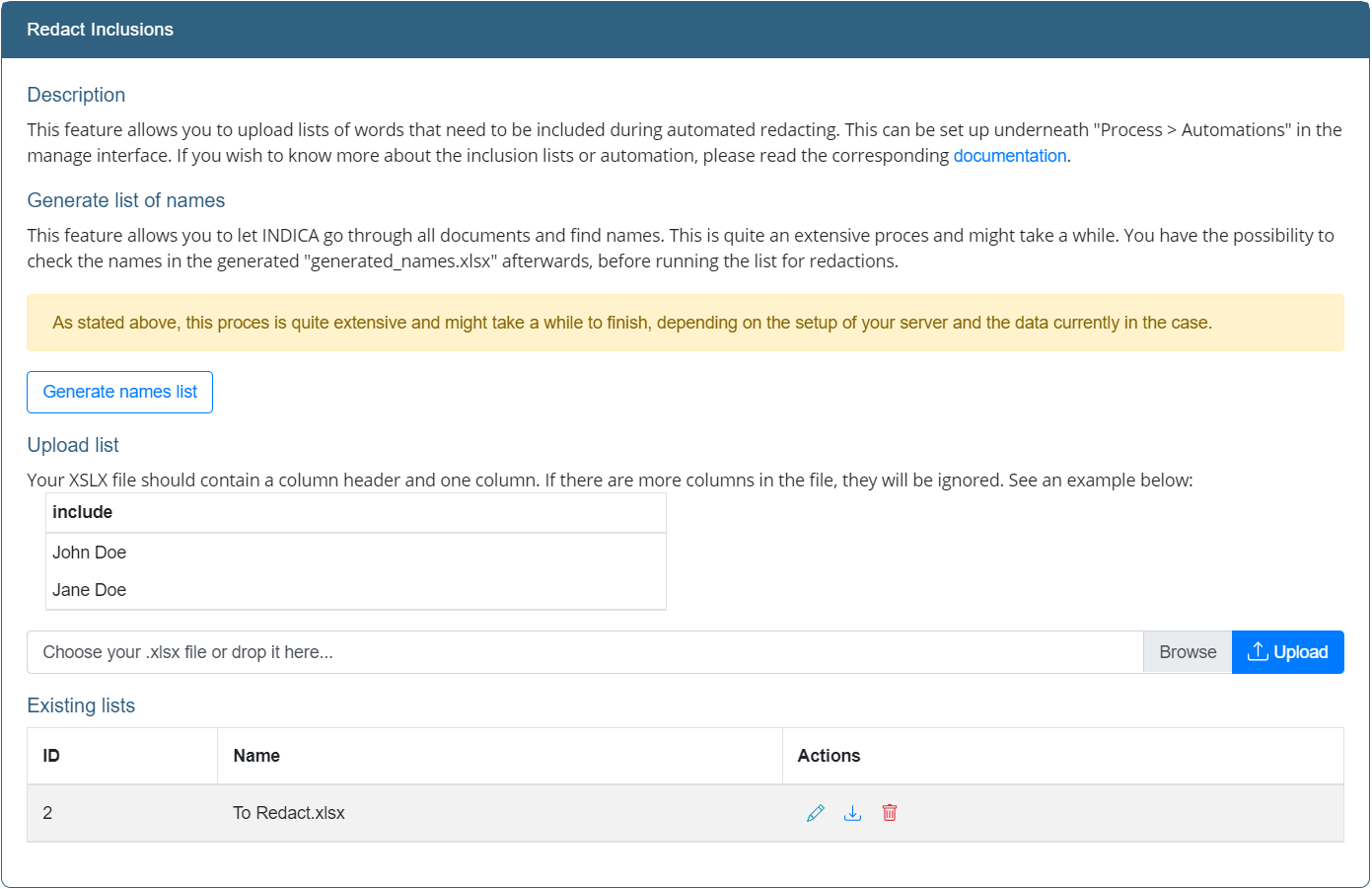
These settings correspond to automated redactions in INDICA. Here you can upload an XLSX file of words to include when performing automated redactions. In-line editing of the XLSX files is possible. This allows for adding, changing and deleting words without having to download and upload the XLSX file when changes are wanted.
Redaction Exclusions
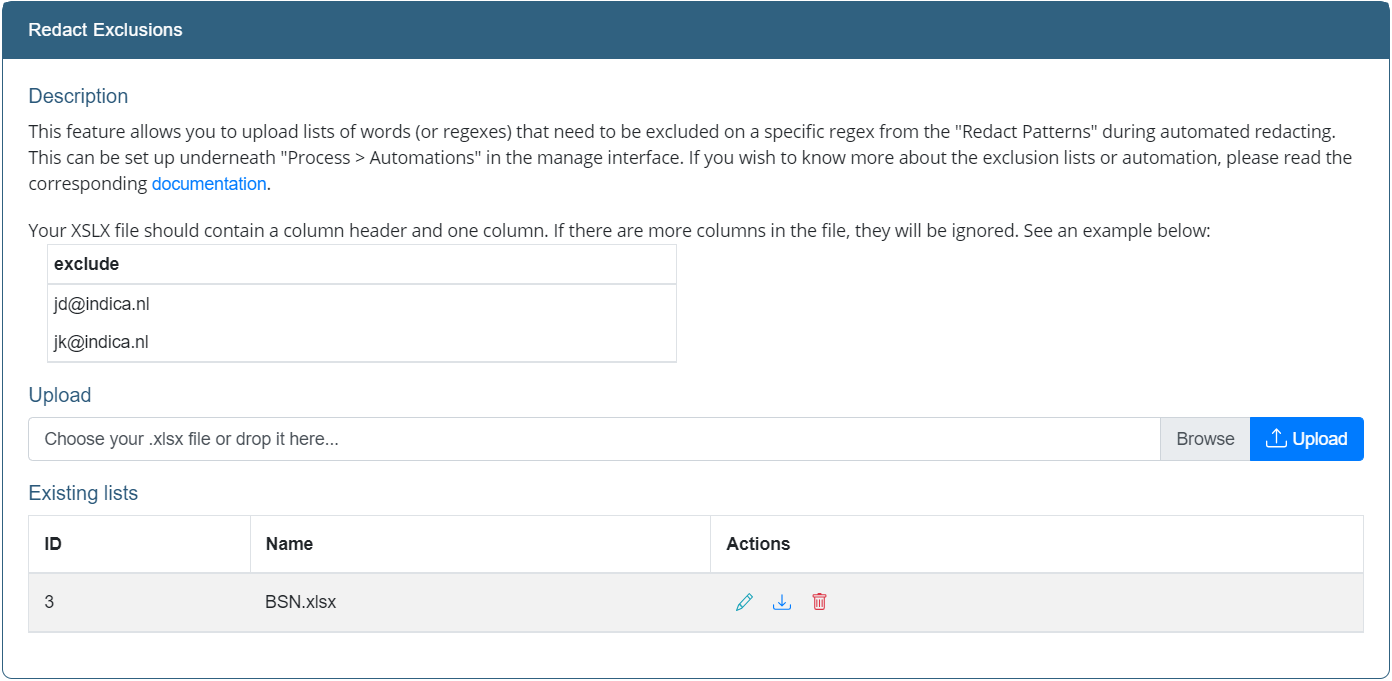
These settings correspond to automated redactions in INDICA. Here you can upload an XLSX file of words to specifically exclude from the list of already exisiting redaction patterns. In-line editing is possible. You can read more about how to use the exclusion lists here: manager-automations
Redact Styles
By default, the style of a redaction is a black box with no overlay text. There may be a situation where you want to, for example, redact all phone numbers in a document with a red box with white overlay text saying “PHONE”. This is possible with this setting. Here you can set the name of the style, the color of the box and the overlay text. These styles will then be available in the Search & Redact option in the previewer’s document actions.
Redact Patterns
These settings set the regex patterns that you can search by in the previewer. You can create new patterns, delete pre-existing ones, and temporarily disable the patterns making them not available to search by.