Roles and Permissions
When working with sensitive data, protecting that data and making sure users will only see that they need to see is very important. To accommodate this, INDICA features a Roles and Permissions system. With this system, it is possible to define custom roles and assign permissions to those roles. This gives complete control over what a user can and cannot do, while still keeping it maintainable and scalable.
Introduction to Roles and Permissions
General information
Roles and Permissions are a part of the Admin portal. This means that only administrators (or anyone with the corresponding role, if assigned by an administrator) can change the setup of roles and permissions. Users with the Admin role are unlimited in their actions. However, every action an administrator takes is logged for audit purposes. Logged actions cannot be changed by any administrator.
Changing the setup of roles and permissions can (by default) only be done by Administrators. However, changing the roles and permissions is a permission in itself, meaning it can be assigned to other roles if desired.
Roles
A role can be assigned to a user or a group of users. These roles have permissions assigned to them. A user can have multiple roles, and roles can have multiple permissions.
Roles can be mapped to AD groups, more information about mapping can be found in the section Mapping AD groups to roles.
The following roles are configured by default:
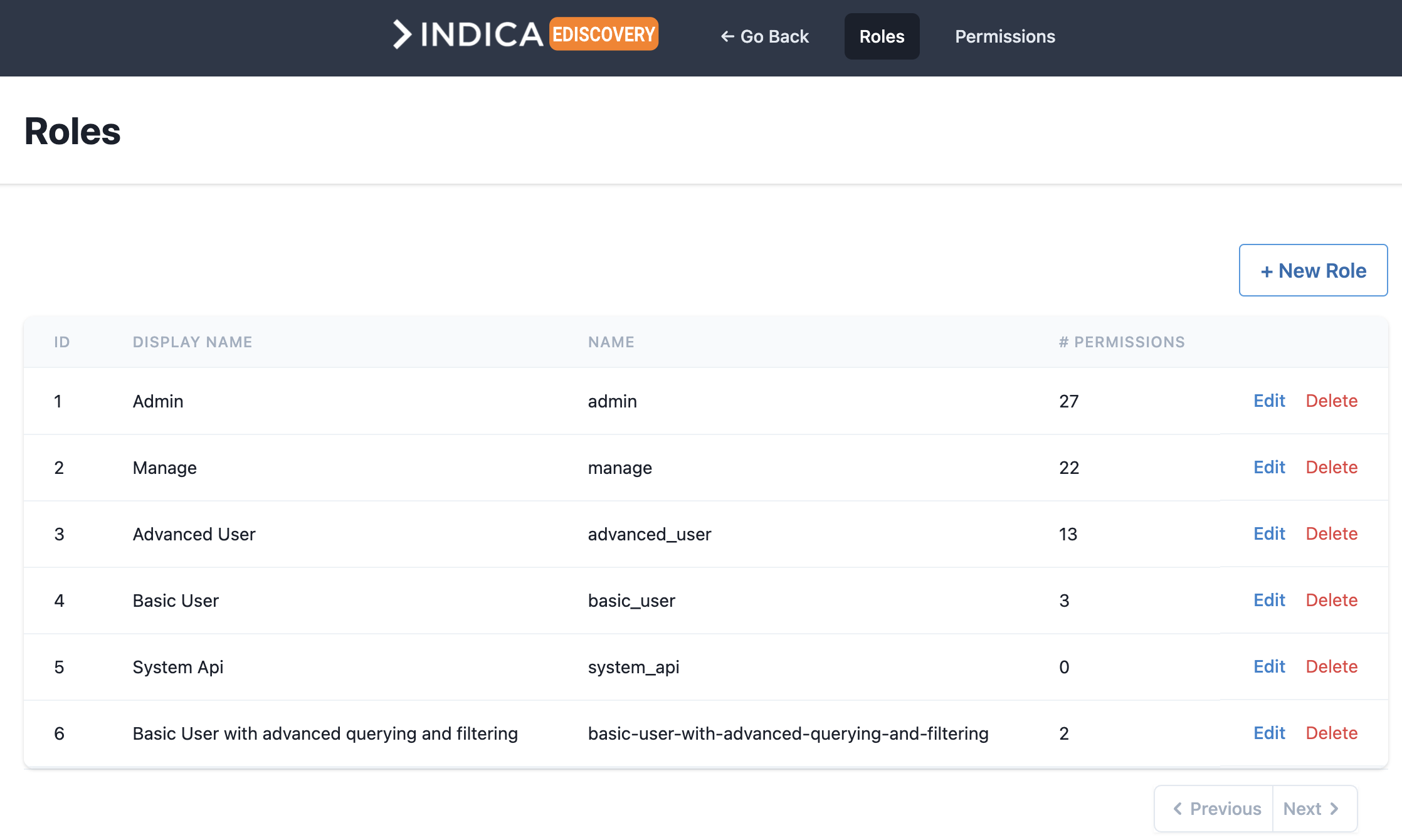
- Admin
- Typically assigned to administrators.Administrators can see and do anything on the system.They have unlimited access to all cases and all settings.Administrators are responsible for setting up and maintaining the INDICA Appliance.
- Case Admin
- This role is intended for Case Administrators.They have elevated roles over managers, meaning they can manage users and cases on an appliance,but do not have access to the system settings that administrators do.
- Manage
- This role is intended for Case Managers.Case managers can see and change settings to the cases they are assigned on.They are responsible for case settings like workflows, tags, data sources, etc.
- Advanced User
- The “Advanced User” role is for trained and experienced users.This role gives more information and features on the Search page.
- Basic User
- The “Basic User” role is for new users with limited rights.This role gives access to a limited Search page with only basic functionality.
- System Api
- Internal system user. Is only used for INDICA’s inner workings.Changing or assigning this role is not needed.
Note
Roles are system-wide. This means that when a role is edited, the permissions of that role will apply to all cases that use this role. If this behavior is not desired, it is possible to create roles for a specific Case and use those roles for that Case. This allows administrators to have Case-specific roles (and permissions).
Permissions
A permission is something a user can see or do in the system. This can be assigning a tag, viewing document content, changing settings, etc. These permissions are attached to a role, and roles are attached to users (or AD groups, see Mapping AD groups to roles).
New permissions cannot be created by the administrator or any other user. This is because permissions are defined in the sourcecode of the INDICA Appliance. New permissions will be included in future releases of INDICA. If you’re an existing customer, they can also be requested. Contact INDICA for more details.
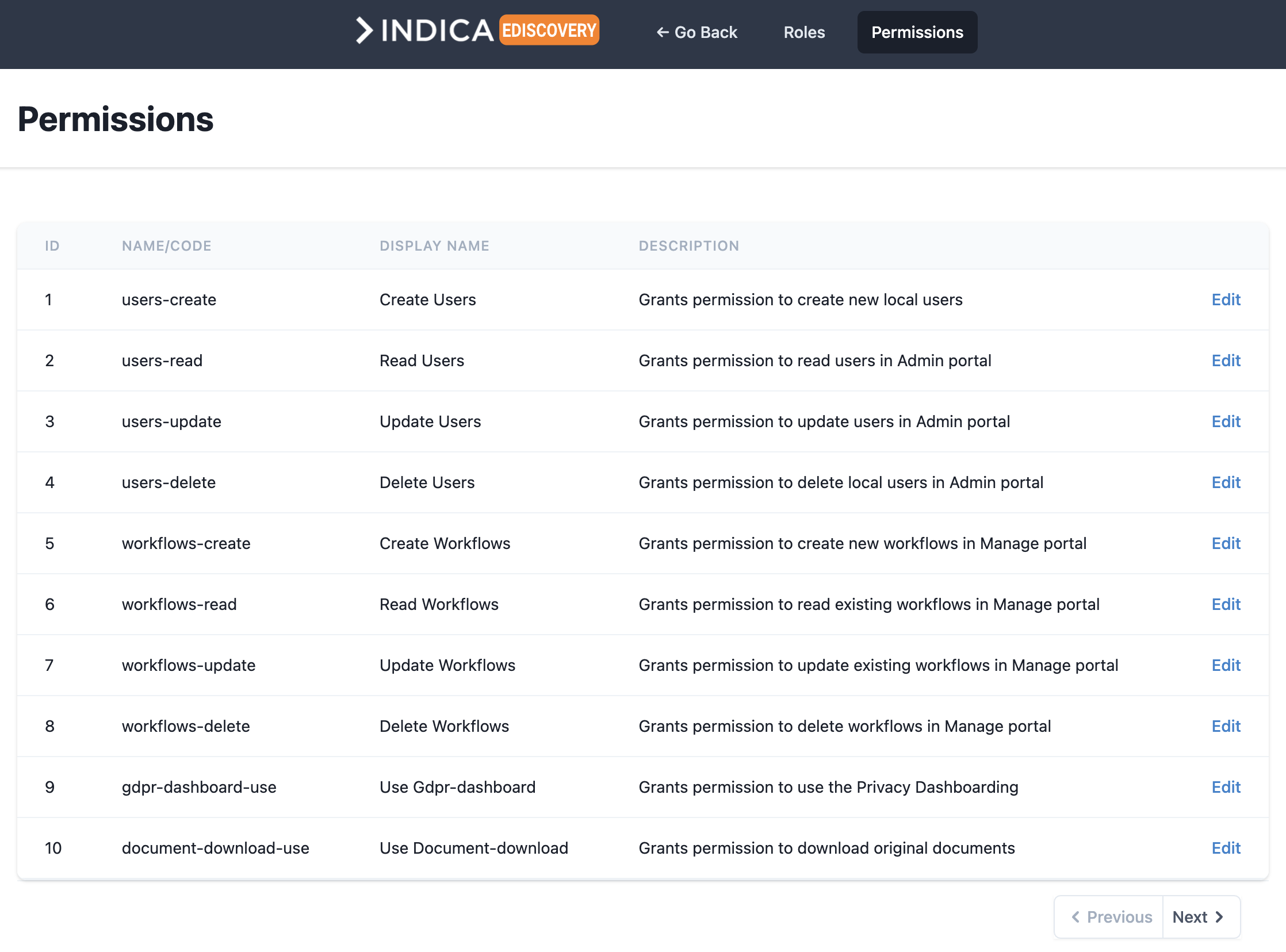
For a full list of all permissions, their description and which roles have which permission, please refer to the Default permissions matrix.
Note
Permissions cannot be deleted. They can be edited, but only the display name and the description can be changed.
Configuring Roles
Adding a new role
A new role can be created by clicking the “+ New Role” button on the “Roles” setup page. The following screen will open:
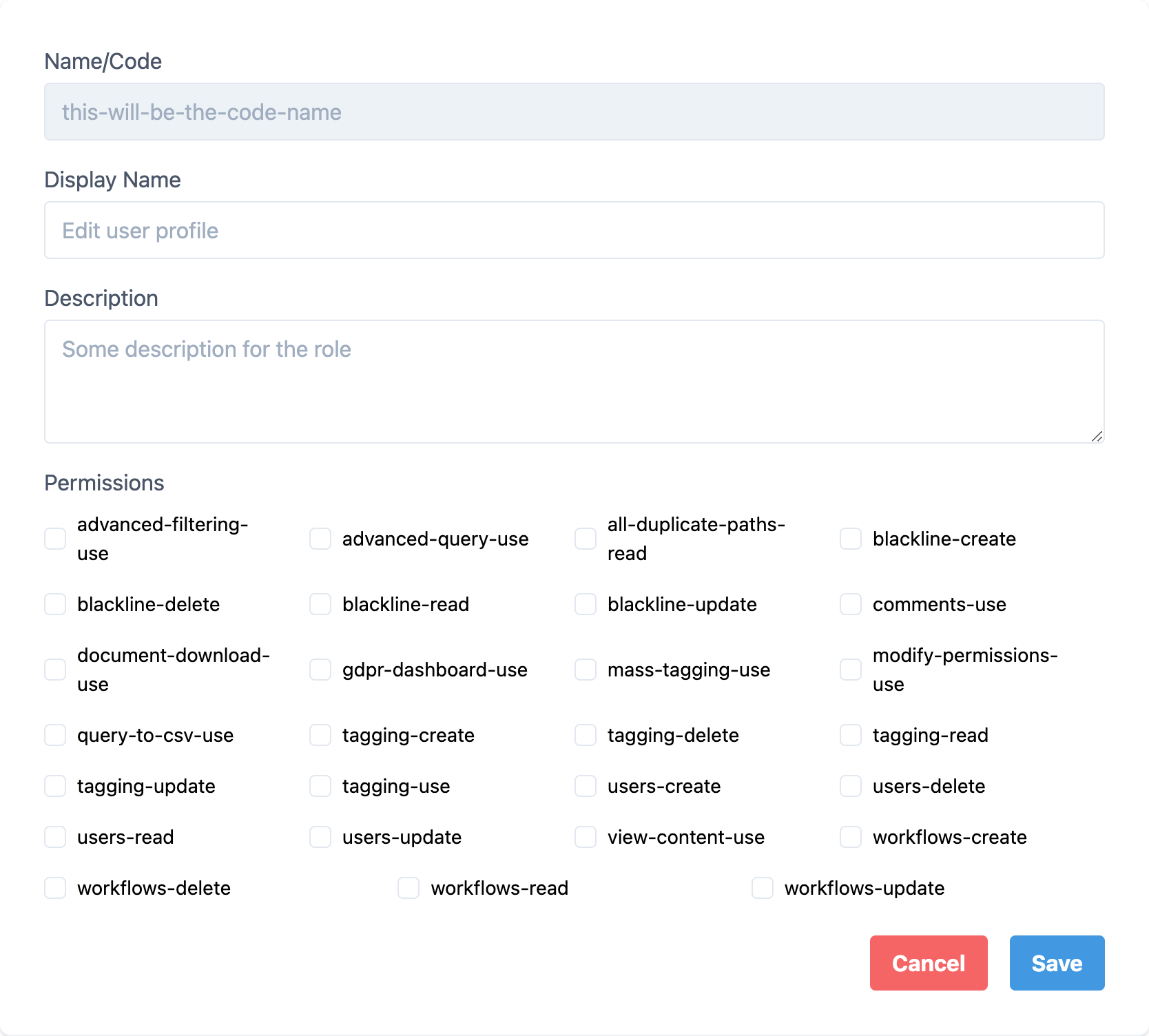
In this form, the following information is required:
- Name/Code
- Cannot be filled in by the user, will be generated based on the Display Name.
- Display Name
- Name of the role, for example “Basic User with advanced querying and filtering”.
- Description
- Description of this role, so they can be distinguished.
- Permissions
- Check the boxes for the required permissions.
Note
In this example, the new role is an extention of an already existing role. This means that if this new role is assigned to a user alongside the already existing role, the permissions of both roles will be combined. This makes it unnecessary to select all permissions while setting up this new role. The best course of action will be to select the extra permissions and assign both roles to the user(s). However, it is also possible to add the permissions of the “Basic User” role to this role as well, and only assign this role to the user(s).
Once all information is entered, it will look like the following image:
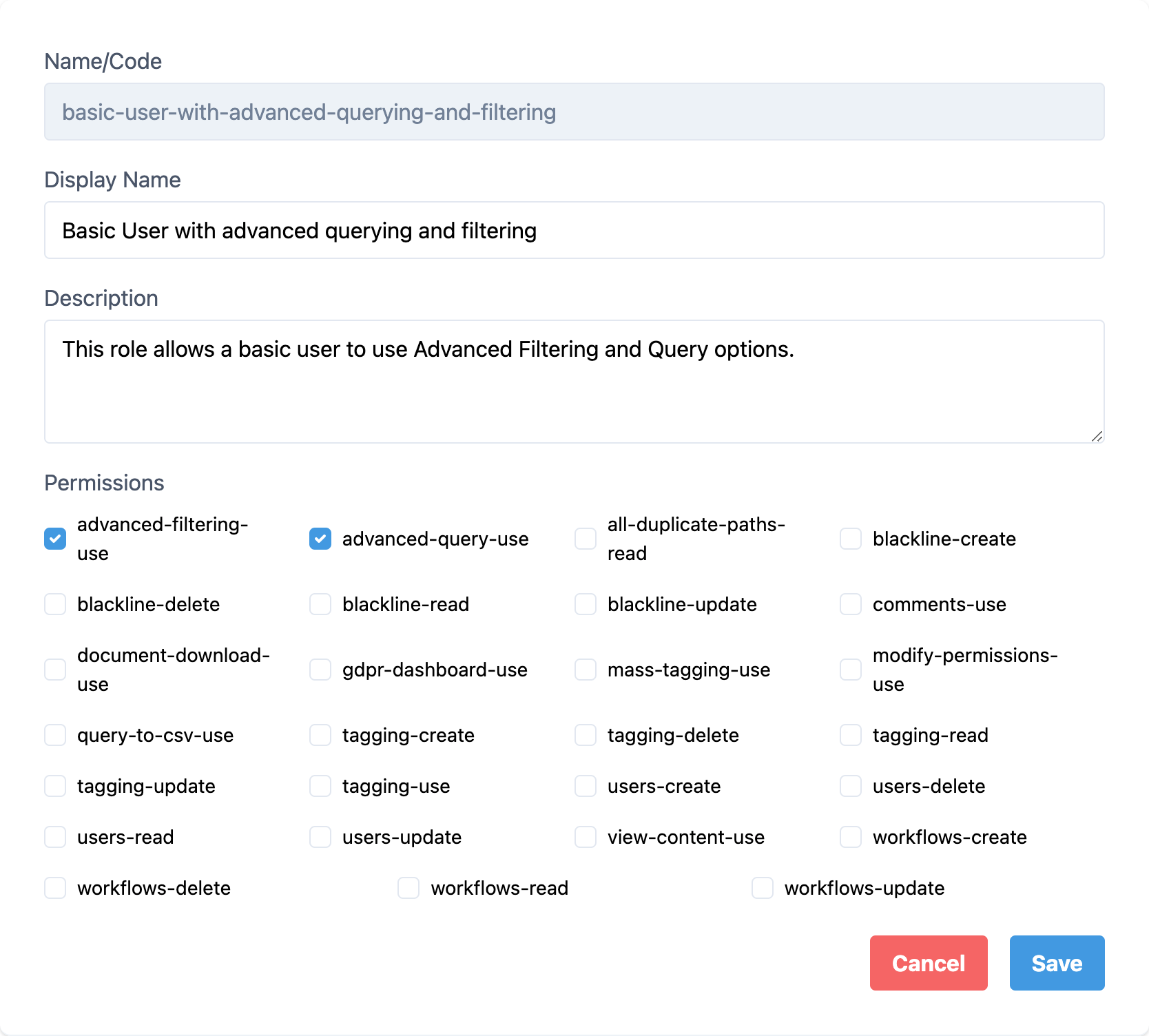
Once done, click “Save” to save your new role. It should now be displayed in the overview. This role can now be assigned to user(s).
Editing an existing role
To edit an existing role, click the “Edit” option. The following page will be displayed:
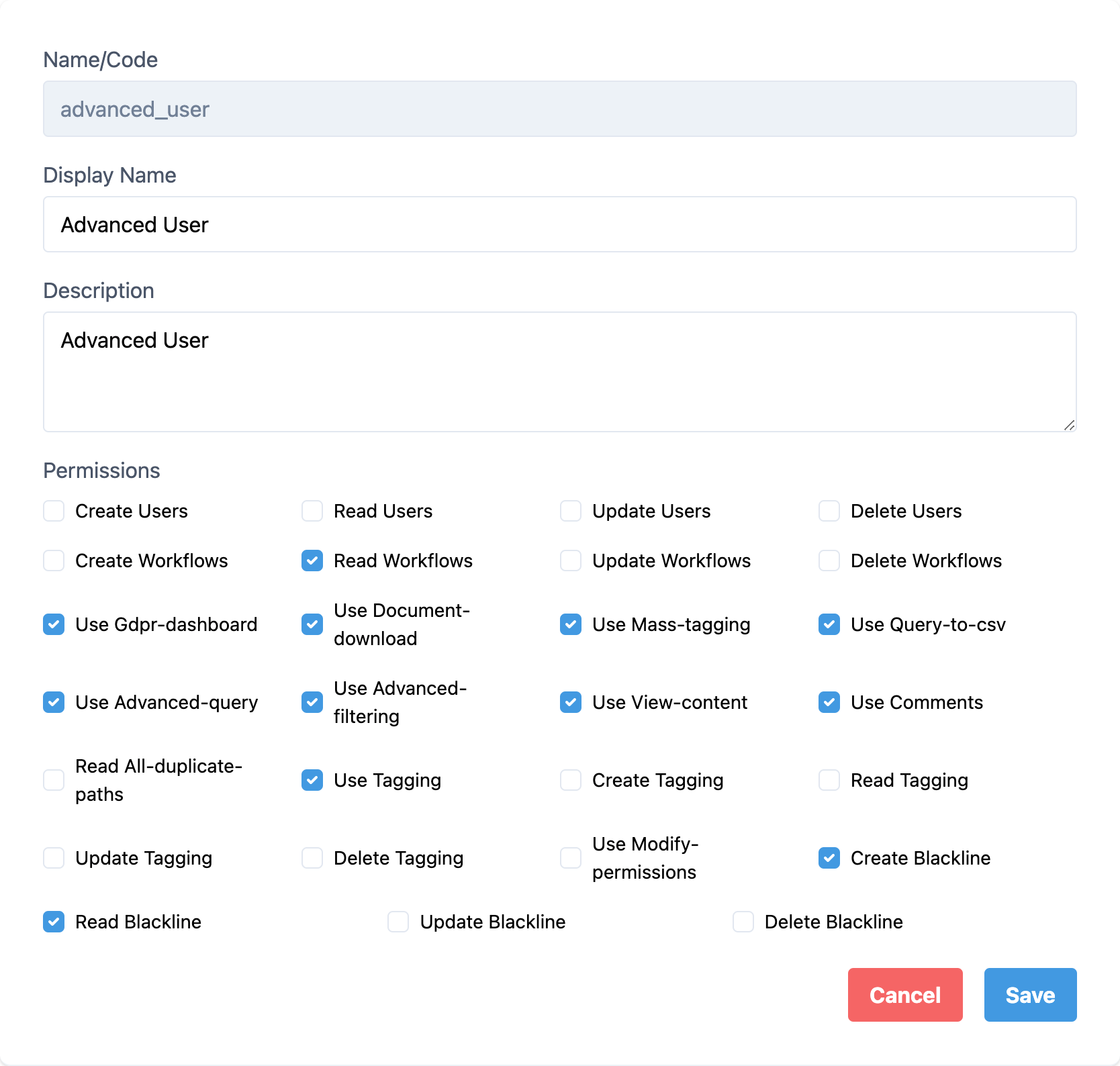
Simply make the edits needed, and click “Save” to save the changes.
Note
The system will immediately recognise the changes and assign the changed permissions to the users that have this role assigned. In some situations it may be necessary to sign out and sign back in for the changes to take effect.
Deleting an existing role
To delete an existing role, click the “Delete” option. A confirmation prompt will open, asking you if you’re sure you want to delete this record. Click “OK” to delete this role.
Note
Deleting a role that is assigned to user(s) may have implications on the permissions of the user(s). It is advised to deattach the role before deleting it.
Default permissions matrix
This table shows the Authorisation Matrix of the default roles and permissions.
users-create |
Grants permission to create new local users |
Admin |
|---|---|---|
users-read |
Grants permission to read users in Admin portal |
Admin |
users-update |
Grants permission to update users in Admin portal |
Admin |
users-delete |
Grants permission to delete local users in Admin portal |
Admin |
workflows-create |
Grants permission to create new workflows in Manage portal |
Admin |
workflows-read |
Grants permission to read existing workflows in Manage portal |
Admin |
workflows-update |
Grants permission to update existing workflows in Manage portal |
Admin |
workflows-delete |
Grants permission to delete workflows in Manage portal |
Admin |
workflow-report-use |
Grants permission to use the navbar item in the Manage portal |
Admin |
privacy-dashboard-use |
Grants permission to use the Privacy Dashboarding |
Admin |
document-download-use |
Grants permission to download original documents |
Admin |
document-history-download-use |
Grants permission to download the history of actions taking on a document |
Admin |
document-pages-delete |
Grants permission to delete pages from documents |
Admin |
document-name-change |
Grants permission to change document names |
Admin |
document-date-change |
Grants permission to change document dates |
Admin |
mass-tagging-use |
Grants permission to use tagging in batches by query and page |
Admin |
query-to-csv-use |
Grants permission to export query results to CSV file |
Admin |
advanced-query-use |
Grants permission to use the Advanced Query Builder |
Admin |
advanced-filtering-use |
Grants permission to use Advanced Filtering |
Admin |
search-visuals-use |
Grant permission to use Search Visuals |
Admin |
saved-queries-use |
Grant permission to use Saved Queries |
Admin |
saved-queries-create |
Grants permission to create Saved Queries |
Admin |
saved-queries-read |
Grants permission to view Saved Queries |
Admin |
saved-queries-update |
Grants permission to update Saved Queries |
Admin |
saved-queries-delete |
Grants permission to delete Saved Queries |
Admin |
exact-match-search-use |
Grants permission to use Exact Match Search |
Admin |
timeline-use |
Grants permission to use timeline |
Admin |
view-content-use |
Grants permission to view document content |
Admin |
comments-use |
Grants permission to create, read, update and delete comments on documents |
Admin |
all-duplicate-paths-read |
Grants permission to view all paths of a document with duplicates |
Admin |
tagging-use |
Grants permission to use the tagging functionality |
Admin |
tagging-create |
Grants permission to create new tags in Manage portal |
Admin |
tagging-update |
Grants permission to update existing tags in Manage portal |
Admin |
tagging-read |
Grants permission to view existing tags in Manage portal |
Admin |
tagging-delete |
Grants permission to delete tags in Manage portal |
Admin |
modify-permissions-use |
Grants permission to modify Roles & Permissions |
Admin |
redact-create |
Grants permission to redact documents |
Admin |
redact-read |
Grants permission to view redacted documents |
Admin |
redact-update |
Grants permission to update already redacted documents |
Admin |
redact-delete |
Grants permission to remove redacted documents |
Admin |
redact-generate-names-use |
Allows user to run name generation script for autoredacting |
Admin |
redact-settings-use |
Allows user to change redact settings on the landing page |
Admin |
report-builder-use |
Allows access to report builder in manage and case admin |
Admin |
reports-create |
Create reports and templates, do their exports |
Admin |
reports-update |
Update reports |
Admin |
reports-read |
View reports |
Admin |
reports-delete |
Delete reports and report templates |
Admin |
path-select-use |
Grants permission to use path selector on sidebar searchpage |
Admin |
datatabs-use |
Grants permission to use datatabs |
Admin |
sort-selection-use |
Grants permission to use button Set selection to sort |
Admin |
document-analyse-use |
Grants permission to analyse documents in previewer |
Admin |
previewer-breadcrumbs-use |
Grants permission to use breadcrumbs in previewer |
Admin |
original-tab-use |
Grants permission to use the original tab in the previewer |
Admin |
plain-tab-use |
Grants permission to use the plain text tab in the previewer |
Admin |
concept-tab-use |
Grants permission to use the concept tab in the previewer (only available for appliances where the redacting module is enabled) |
Admin |
redacted-tab-use |
Grants permission to use the redacted tab in the previewer |
Admin |
meta-tab-use |
Grants permission to use the meta tab in the previewer |
Admin |
exif-tab-use |
Grants permission to use the exif tab in the previewer |
Admin |
comments-tab-use |
Grants permission to use the comments tab in the previewer |
Admin |
datalineage-tab-use |
Grants permission to use the data lineage tab in the previewer |
Admin |
history-tab-use |
Grants permission to use the document history tab in the previewer |
Admin |
switch-table-list-use |
Grants permission to switch between table and list view of the search results |
Admin |
flip-table-use |
Grants permission to flip the table view vertically. Only works when switch-table-list-use is enabled. |
Admin |
Select-table-columns-use |
Grants permission to select the columns that the table view shows. Only works when switch-table-list-use is enabled. |
Admin |
sortOn-score-use |
Grants permission to sort on relevance |
Admin |
sortOn-date-use |
Grants permission to sort on document date |
Admin |
sortOn-file_name_sort-use |
Grants permission to sort on document name |
Admin |
sortOn-size-use |
Grants permission to sort on document size |
Admin |
sortOn-privacyscore-use |
Grants permission to sort on privacy score |
Admin |
pagination-use |
Grants permission to use pagination and see number of documents found |
Admin |
total-size-use |
Grants permission to see total size of documents found |
Admin |
sidebar-use |
Grants permission to use sidebar |
Admin |
specific-search-use |
Grants permission to search through specific fields in the index |
Admin |
nav-manage-use |
Grants permission to go to the Manage portal |
Admin |
nav-manage-settings-use |
Grants permission to use the navbar item in the manage portal: Settings |
Admin |
nav-manage-settings-general-use |
Grants permission to use the navbar item in the manage portal: Settings > General |
Admin |
nav-manage-settings-display-use |
Grants permission to use the navbar item in the manage portal: Settings > Display |
Admin |
nav-manage-settings-search-use |
Grants permission to use the navbar item in the manage portal: Settings > Search |
Admin |
nav-manage-settings-redact-use |
Grants permission to use the navbar item in the manage portal: Settings > Redact |
Admin |
nav-manage-settings-api-use |
Grants permission to use the navbar item in the manage portal: Settings > API |
Admin |
nav-manage-settings-privacy-use |
Grants permission to use the navbar item in the manage portal: Settings > Privacy |
Admin |
nav-manage-settings-classification-use |
Grants permission to use the navbar item in the manage portal: Settings > Classification |
Admin |
nav-manage-settings-lookandfeel-use |
Grants permission to use the navbar item in the manage portal: Settings > Look and Feel |
Admin |
nav-manage-sources-use |
Grants permission to use the navbar item in the manage portal: Sources |
Admin |
nav-manage-sources-collections-use |
Grants permission to use the navbar item in the manage portal: Sources > Collections |
Admin |
nav-manage-sources-datatabs-use |
Grants permission to use the navbar item in the manage portal: Sources > Datatabs |
Admin |
nav-manage-sources-email-use |
Grants permission to use the navbar item in the manage portal: Sources > Email |
Admin |
nav-manage-sources-fileshares-use |
Grants permission to use the navbar item in the manage portal: Sources > Fileshares |
Admin |
nav-manage-sources-local-use |
Grants permission to use the navbar item in the manage portal: Sources > Local |
Admin |
nav-manage-sources-queries-use |
Grants permission to use the navbar item in the manage portal: Sources > Queries |
Admin |
nav-manage-sources-s3 |
Grants permission to use the navbar item in the manage portal: Sources > S3 |
Admin |
nav-manage-sources-sites-use |
Grants permission to use the navbar item in the manage portal: Sources > Sites |
Admin |
nav-manage-sources-sharepoint-use |
Grants permission to use the navbar item in the manage portal: Sources > Sharepoint |
Admin |
nav-manage-sources-fileupload-use |
Grants permission to use the navbar item in the manage portal: Sources > File Upload |
Admin |
nav-manage-process |
Grants permission to use the navbar item in the manage portal: Process |
Admin |
nav-manage-process-automations-use |
Grants permission to use the navbar item in the manage portal: Process > Automations |
Admin |
nav-manage-process-tags-use |
Grants permission to use the navbar item in the manage portal: Process > Tags |
Admin |
nav-manage-process-filters-use |
Grants permission to use the navbar item in the manage portal: Process > Filters |
Admin |
nav-manage-process-savedqueries-use |
Grants permission to use the navbar item in the manage portal: Process > Saved Queries |
Admin |
nav-manage-process-workflows-use |
Grants permission to use the navbar item in the manage portal: Process > Workflows |
Admin |
nav-manage-process-export-use |
Grants permission to use the navbar item in the manage portal: Process > Export |
Admin |
nav-manage-process-pstcounts-use |
Grants permission to use the navbar item in the manage portal: Process > PST Counts |
Admin |
nav-manage-process-reindex-use |
Grants permission to use the navbar item in the manage portal: Process > Reindex |
Admin |
nav-manage-process-metadata-use |
Grants permission to use the navbar item in the manage portal: Process > Metadata |
Admin |
nav-manage-process-inventory-use |
Grants permission to use the navbar item in the manage portal: Process > Inventory |
Admin |
nav-manage-auditing-use |
Grants permission to use the navbar item in the manage portal: Process > Auditing |
Admin |
nav-manage-auditing-logreport-use |
Grants permission to use the navbar item in the manage portal: Auditing > Log Report |
Admin |
nav-manage-auditing-tagaudit-use |
Grants permission to use the navbar item in the manage portal: Auditing > Tag Audit |
Admin |
nav-manage-reporting-use |
Grants permission to use the navbar item in the manage portal: Reporting |
Admin |
nav-manage-reporting-mailreport-use |
Grants permission to use the navbar item in the manage portal: Reporting > Mail Reports |
Admin |
nav-manage-reporting-overview-use |
Grants permission to use the navbar item in the manage portal: Reporting > Overview Reports |
Admin |
nav-manage-setup-use |
Grants permission to use the navbar item in the manage portal: Setup |
Admin |
manage-files-download |
Grants permission to download files available in the manage portal |
Admin |
manage-files-delete |
Grants permission to delete downloadable files in the manage portal |
Admin |
case-claim |
Grants permission to claim a case |
Admin |
case-unclaim |
Grants permission to unclaim a case |
Admin |
case-create |
Grants permission to create cases |
Admin |
case-update |
Grants permission to edit cases |
Admin |
case-delete |
Grants permission to remove cases |
Admin |
case-admin-dropdown-use |
Grants permission to use the context dropdown in Case Admin |
Admin |
case-overview-use |
Grants permission to see case overview in Case Admin. |
Admin |
case-archive-use |
Grants permission to make case archives and restore them |
Admin |
case-categories-use |
Grants permission to create case categories and subcategories |
Admin |
redact-lists-delete |
Grants permission to delete inclusion/exclusion redact lists |
Admin |
search-results-view |
Grants permission to view search results |
Admin |