Previewer
Here you can find many of the tools that INDICA has to offer. Main purpose is to audit the documents.
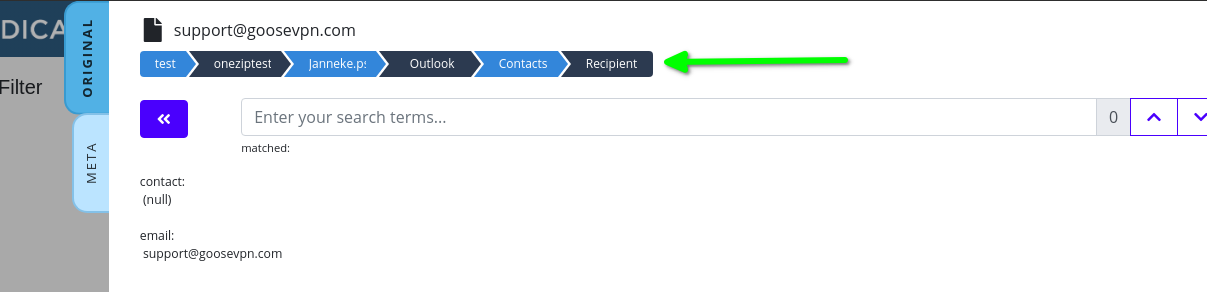
Breadcrumbs
Breadcrumbs show the system path of the source document is located. You can also click on breadcrumbs to create a filter query of the specific path.
Previewer Tabs
Depending on the document type and your settings, preview has multiple ways of displaying different content. To switch between these views you have to click on one of the sidebar buttons (Tabs) in the previewer sidebar.
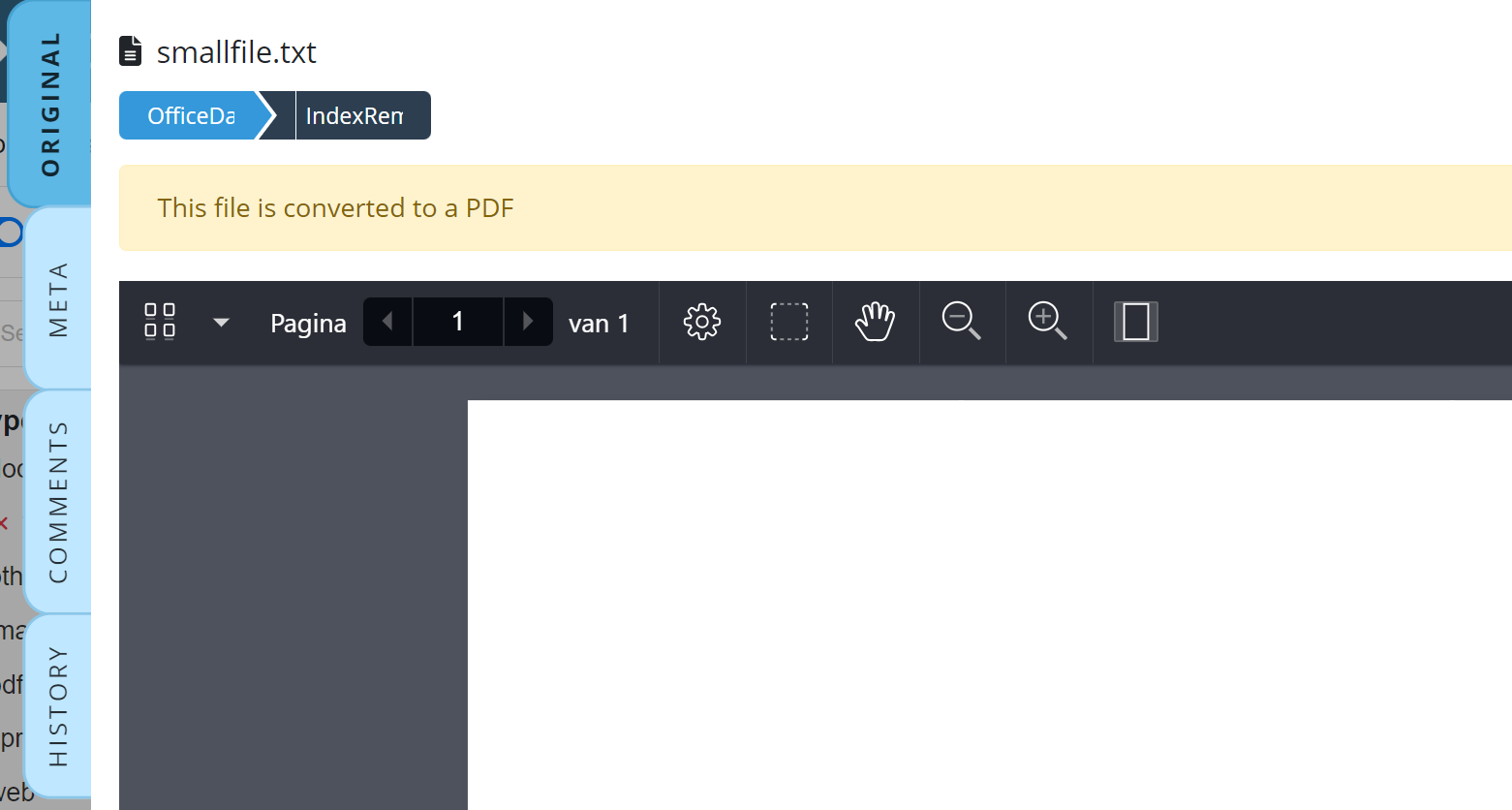
“Redacted and Concept”: These tabs are only available if the redact settings are enabled.
“Original”: Preview of the original document.
“Meta”: Preview of the metadata of document.
“Comments”: On this tab users can read and manage comments.
“History”: The document history is displayed on this tab.
History (Tab)
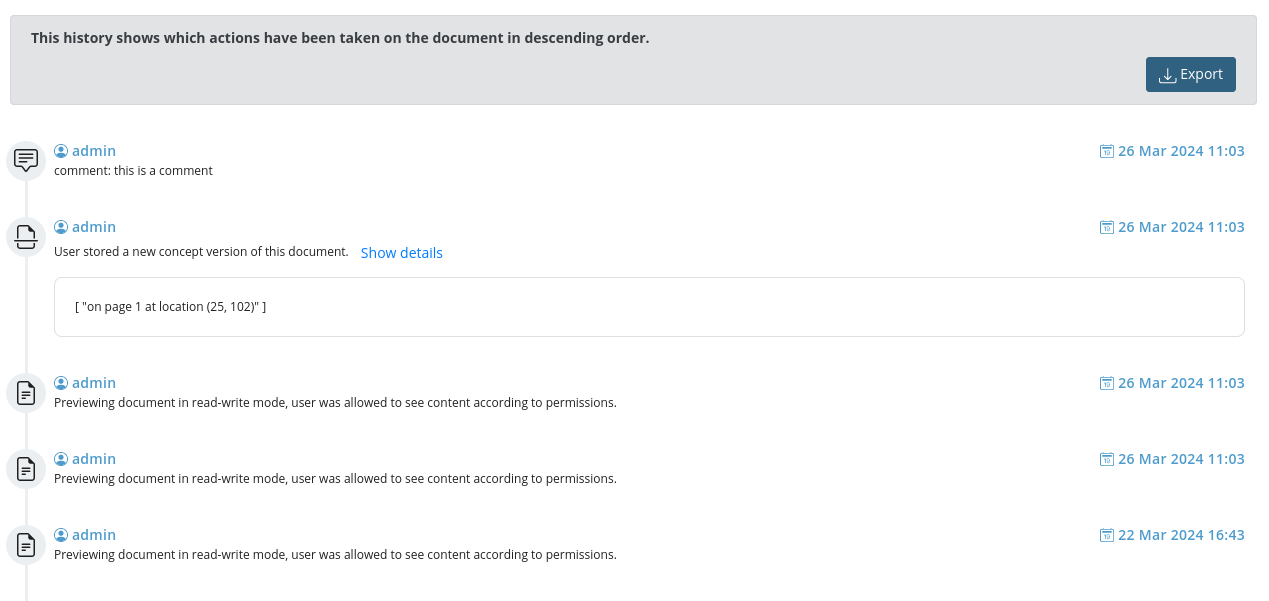
This tab outlines the document history. It is a list of every single action taken on the document: opening, redacting, deleting pages, and other document actions. Each of these actions is tied to a user so it is possible to see who did what action, on what date and at what time. It is also possible to download an export of the document history in a CSV format.
When creating concepts there are extra details provided on the document action, which you can see on the screenshot below. It describes on which page the concept was created and in which location.
Data Lineage (Tab)
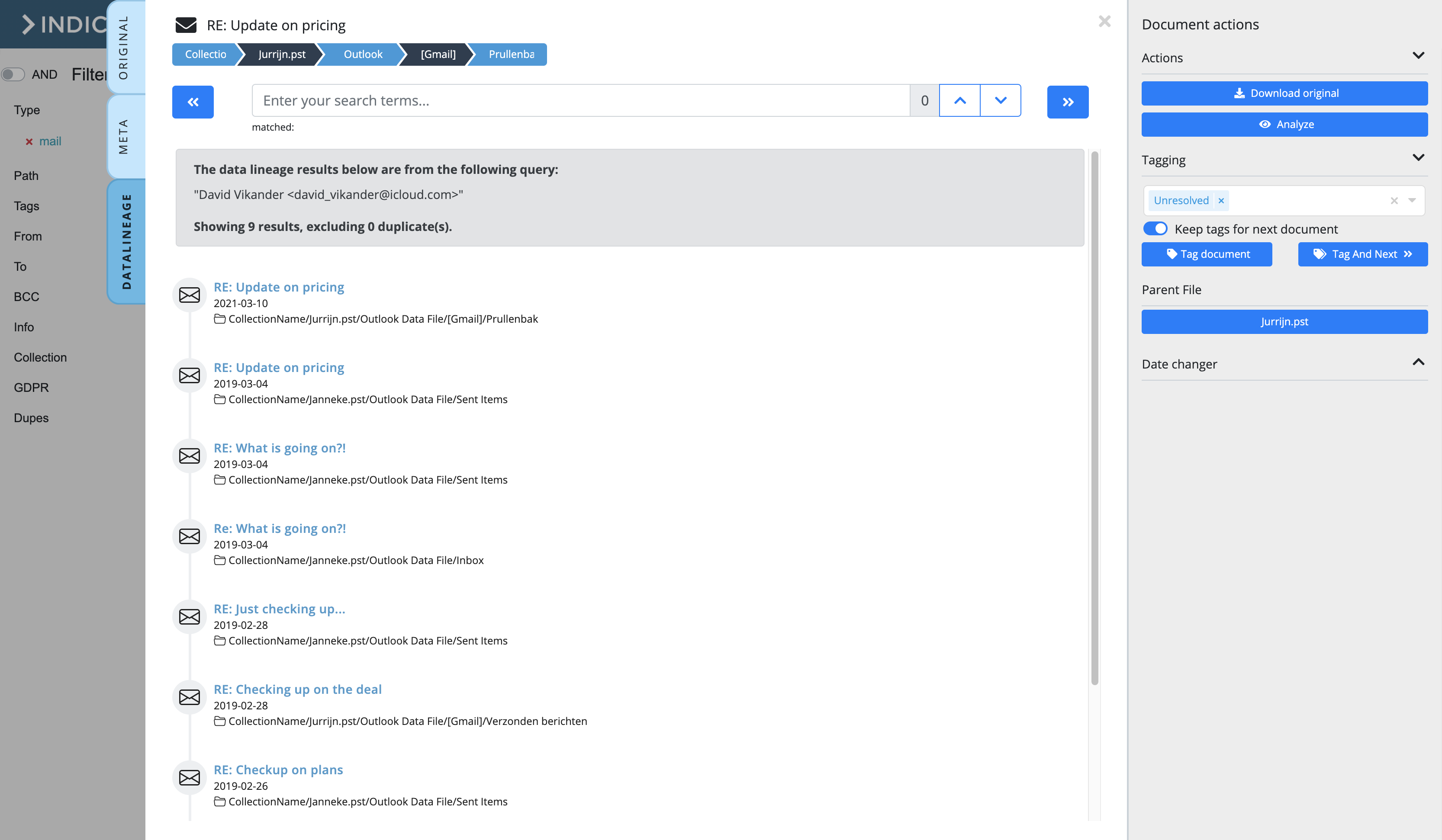
A new feature in INDICA is the possibility to find the “single source of truth” when dealing with duplicate information. When this feature is enabled in the manage interface you can select a part of text within documents. A button “Show data lineage” will show up, see example below:
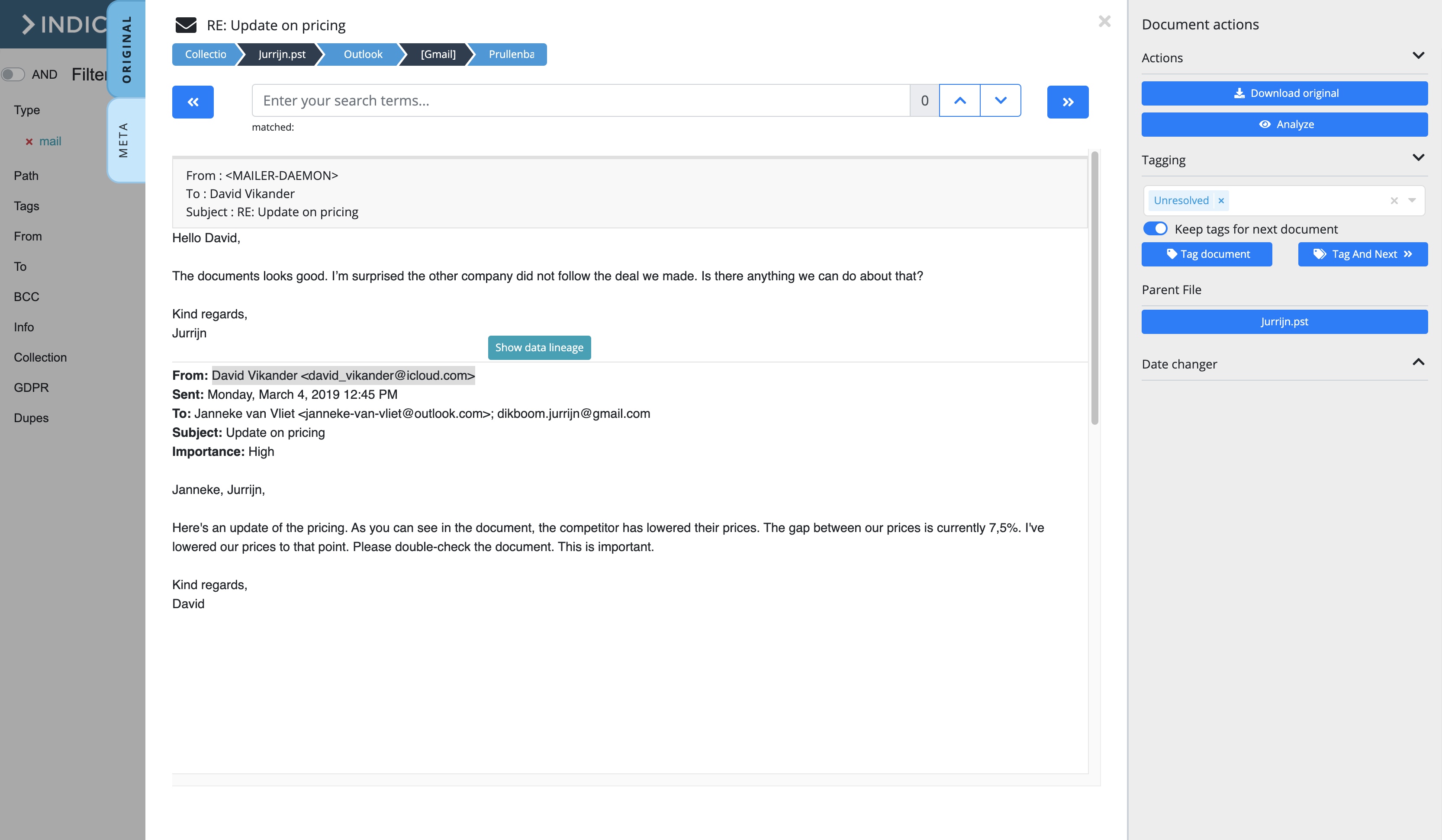
Clicking on this button will open a new tab in the previewer called “Data Lineage”. This will give an overview of the query results for the previously selected text. Within this view you can click on the titles of documents to open them in another browser tab.
Note
Due to the way iframes work the button will show up at the top of the preview. This means that selecting text in (for example) some e-mails the button will show up at the top of the preview.
PDF Controls
When you open a PDF some extra control option will appear.
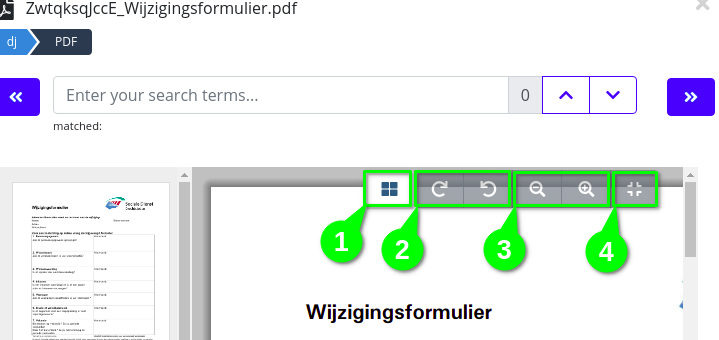
Allows to collapse and hide thumbnails on the left side
Lets you rotate the document clockwise or counterclockwise
Lets you zoom in/out
Resets the zoom level
Note
The Advanced PDF Viewer is not available on all INDICA appliances.

From left to right:
Lets you view thumbnails of the document. You can also view the outline, annotations and bookmarks of the document.
Lets you navigate the pages of the document.
Lets you customise the document’s page layout.
Lets you enter Pan mode.
Lets you zoom in and out of the document.
Fits the document to the width of the previewer.

From left to right:
Drawing on top of the document, including highlighting.
Lets you insert images and some pre-set stamps.
Add notes to the document.
Add a text box to the document.
Draw lines on the document.
Un-do and re-do changes.
Print the document.
Search inside the document.
Export the document as a PDF.
Redaction tool. You can redact manually highlighted text or get a free-form redaction box to select an area.
Document Actions
Documents will have different actions you can take, each of them will be described in detail below.
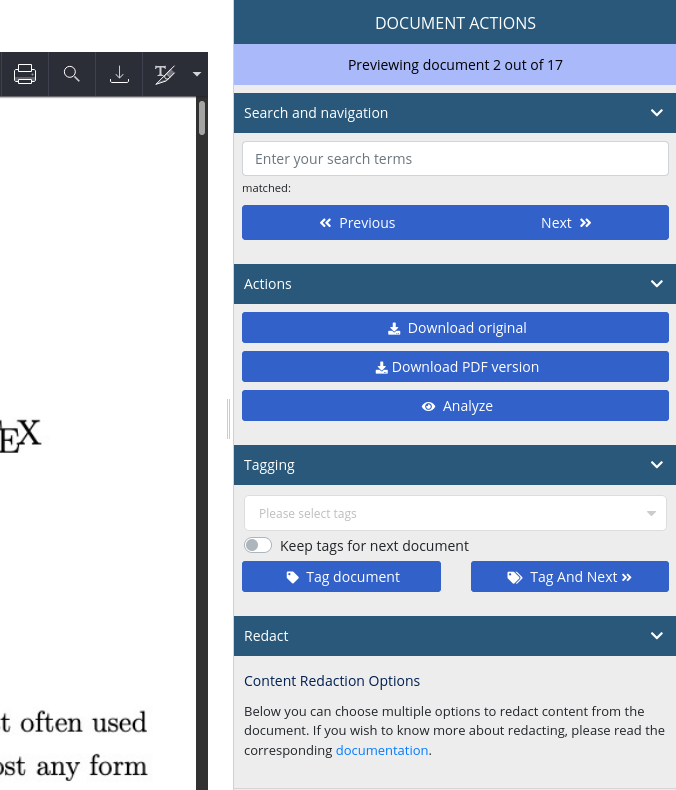
“Search and Navigation” - search through the document content, navigate to the next and previous documents.
“Actions” - download the original, non-redacted version of the document, download the PDF version of the file, restore the original file and analyze the document.
“Redact” - redaction tools for files. Read more: Redacting.
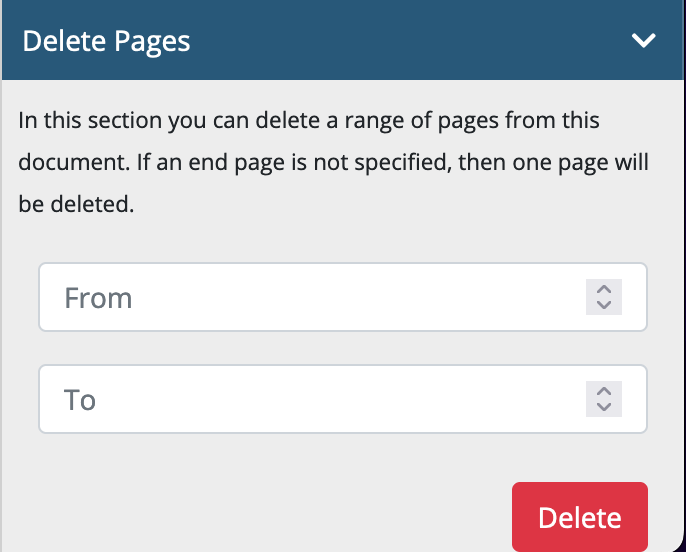
“Delete Pages” - ability to delete pages from your file. Requires the advanced PDF viewer. Read more: Page Deletion (Advanced PDF Viewer).
“Date Changer” - allows to change the date of the document. This can cause the document to appear in a different place in search results.
“Change Filename” - allows to change the filename of the document. Read more: Change Filename.
“Tagging” - Allows to tag individual documents. Read more: Tagging individual items.
“Attachments” - if the document is an e-mail, it may have attachments. The link to those attachments is provided in this section.
“Parent” - if the document is an e-mail attachment or part of an archive, the link to the parent is provided in this section.
Note
The Advanced PDF Viewer is not available on all INDICA appliances.
The document actions for the previewer stay the same, for the exception of the redaction tools. The search function is also moved to the document actions.
Redacting
Redacting allows to hide parts of the document and download the redacted version. To enable the ‘Privacy and Redaction Mode’ for a document, click on the document. In the previewer, you will find the privacy items marked in red. This is a draft version that you review before applying redactions and generating a final version.
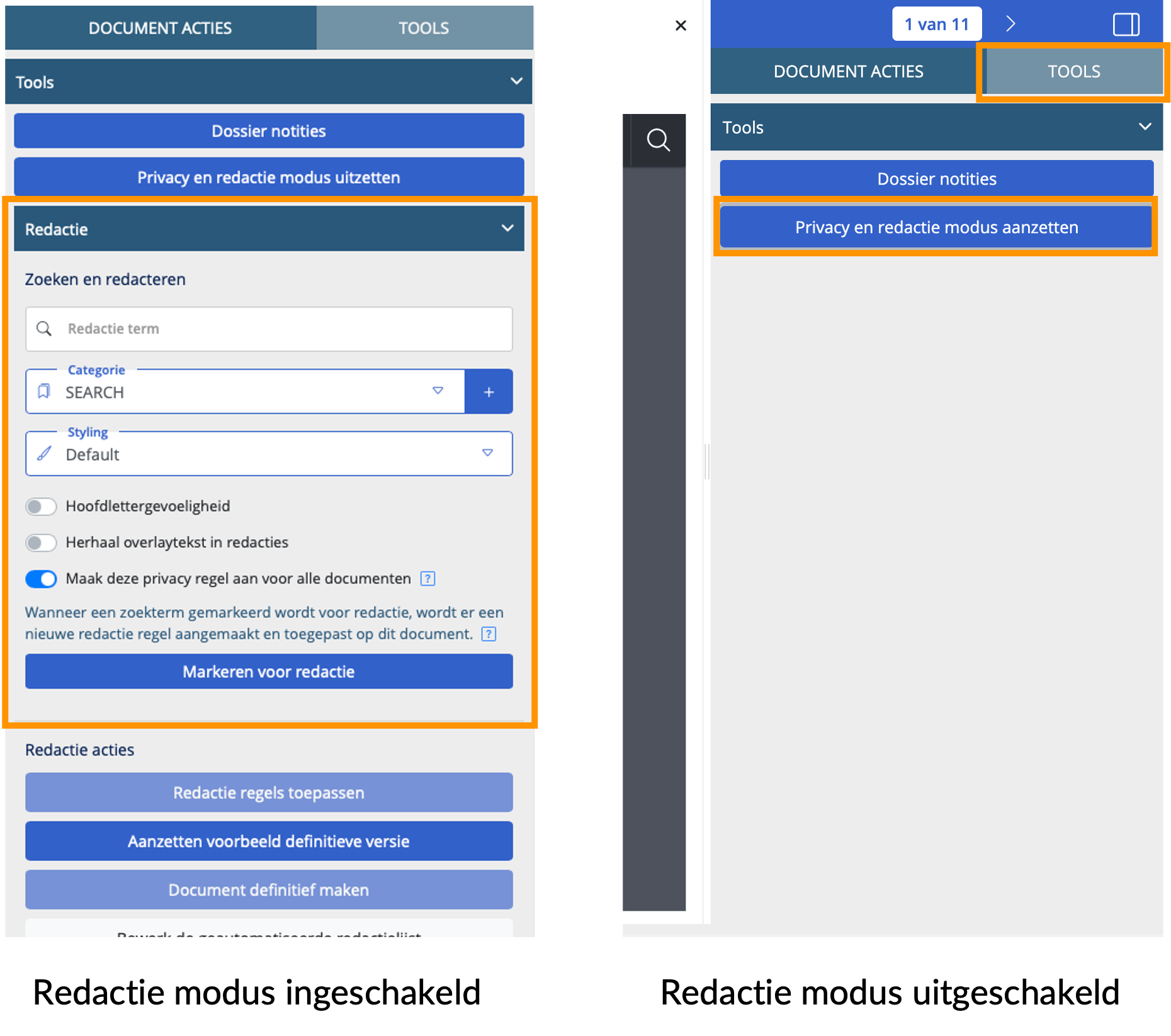
In the redaction mode, you can view the privacy items per document:
To enable redaction mode, click on Tools > Enable Privacy and Redaction Mode.
Scroll to the bottom to see the privacy items for each document.
Here, you can also add, remove, or define exception grounds for each privacy item.
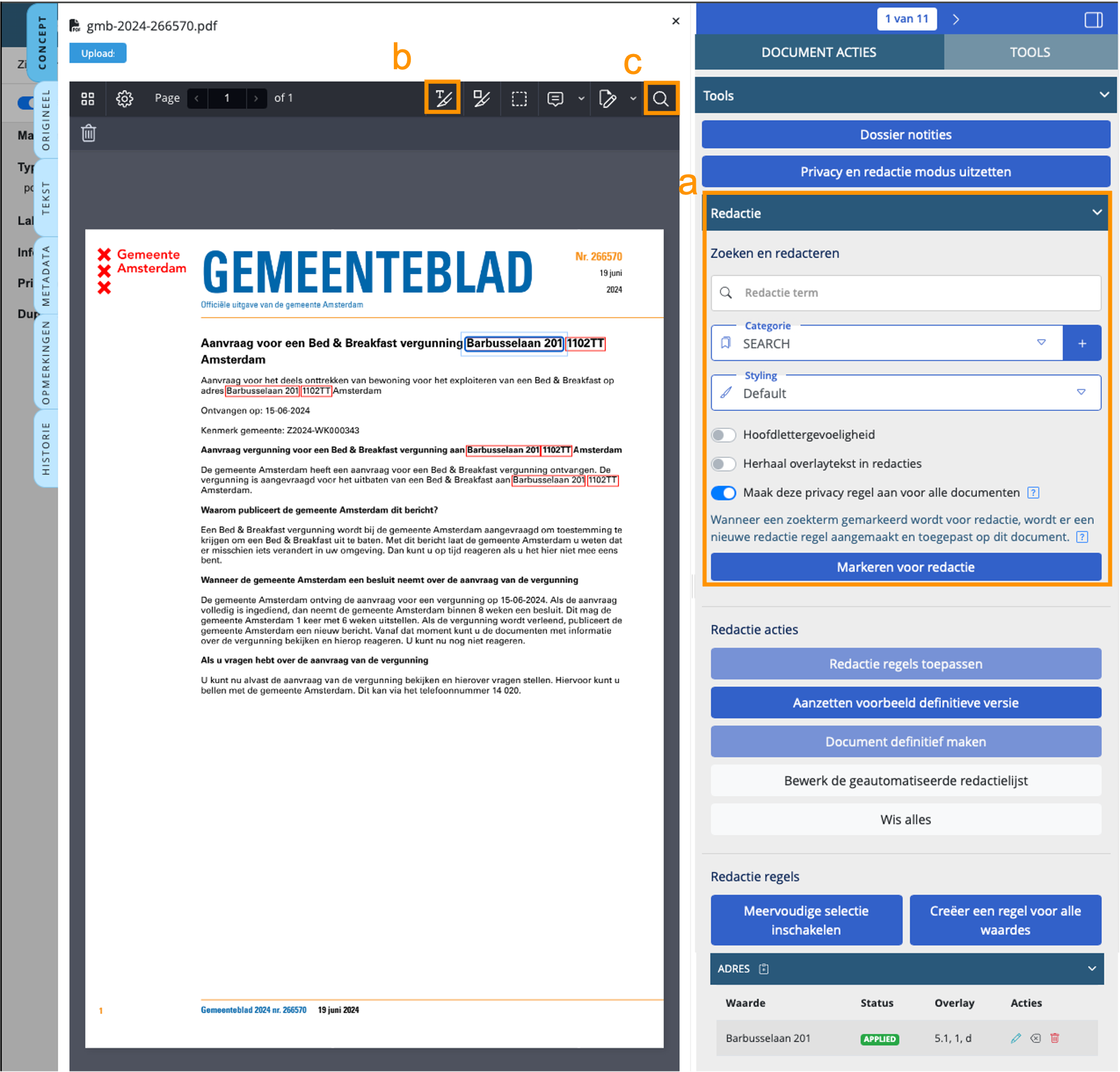
In this mode, new terms can still be added for redaction. This can be done in various ways:
Choose the exception ground and the category in the Redaction tab, then enter the term in the search field and click ‘Mark for Redaction.’
Choose the exception ground and the category in the Redaction tab, then enter the term in the search field. Then click on the ‘Text Redaction’ tool in the upper toolbar and select the text with the mouse.
If you want to check if a term exists in the document, click on the ‘Search Document’ tool in the upper toolbar and enter the term in the search field.
Review
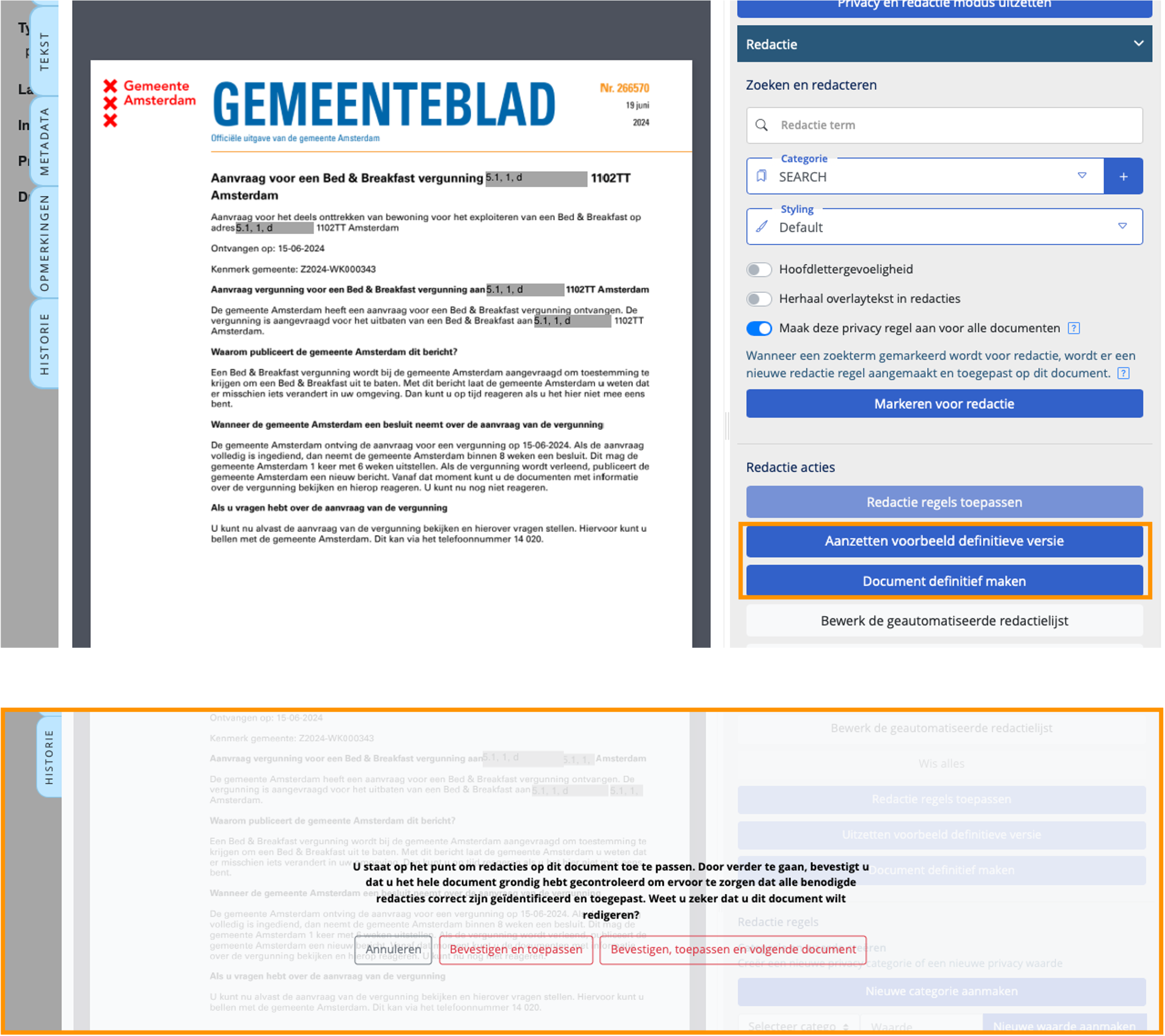
After finalizing the redactions, you can move all documents to the ‘Review’ step. After reviewing the draft redactions, click on ‘Enable Preview of Final Version,’ and the red markings will turn into gray boxes with codes for exclusion grounds on top. If you are satisfied with the final version, click on ‘Finalize Document.’ A pop-up will appear where you can cancel, confirm, or confirm and move to the next document.
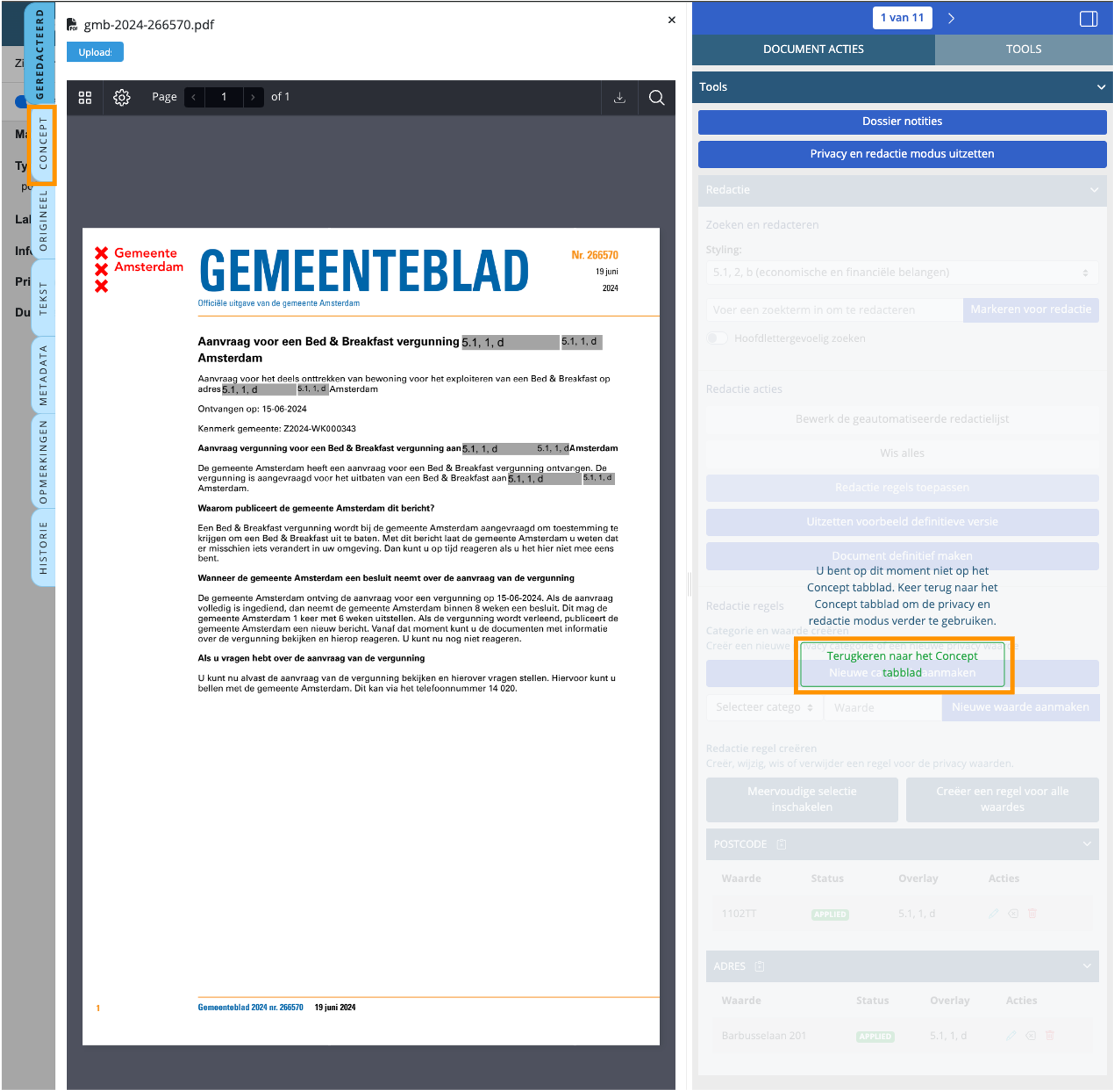
Documents that have been finalized can no longer be modified in the Redacted tab. However, changes can still be made to the draft version in the “Draft” tab. After making changes in the draft tab, the document must be finalized again by clicking on ‘Preview Final Document’. This will finalize the document again, and it will then appear in the “Redacted” tab.
Date Changer
Allows changing creation date for any of the documents. This is especially useful when a document has been digitalised, and has lost its original creation date.
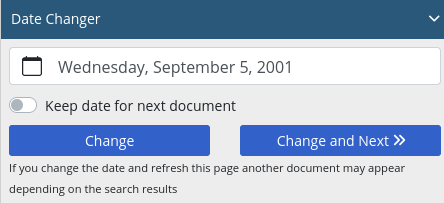
When changing multiple documents at the same time, the user can switch to keep the date indicated for the next document, and when pressing “Change and Next” the date will be kept when moving to the next document.
Page Deletion (Advanced PDF Viewer)
Note
The Advanced PDF Viewer is not available on all INDICA appliances.
The user can choose to delete pages from a specific document in INDICA. This, like redaction, is reversible – however, one cannot reverse only page deletion or only redaction , it is done at the same time. Only a range of pages can be deleted. If a document has concepts on a page that is deleted, the concepts are deleted as well. If a redacted and a concept version exists, deletion can only happen on the concept version, and the redacted version does not update unless the concepts are applied to the document
Change Filename
In some cases a user might want to change the display name of a document. This can be necessary when the title of the document contains some sensitive information that you don’t want seen on, for example, an export. The original name can be restored at any time.
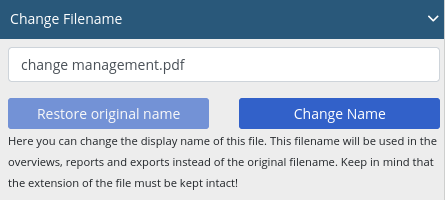
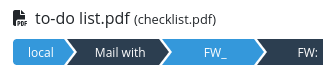
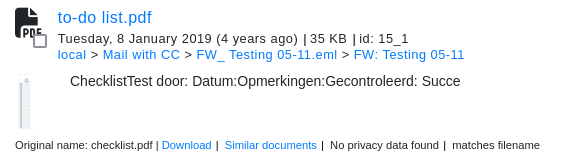
When a document’s filename is changed, the user can still search by the system name of the document. In the previewer, the original name will be shown alongside the changed display name, as well as in the search results.
Searching in documents
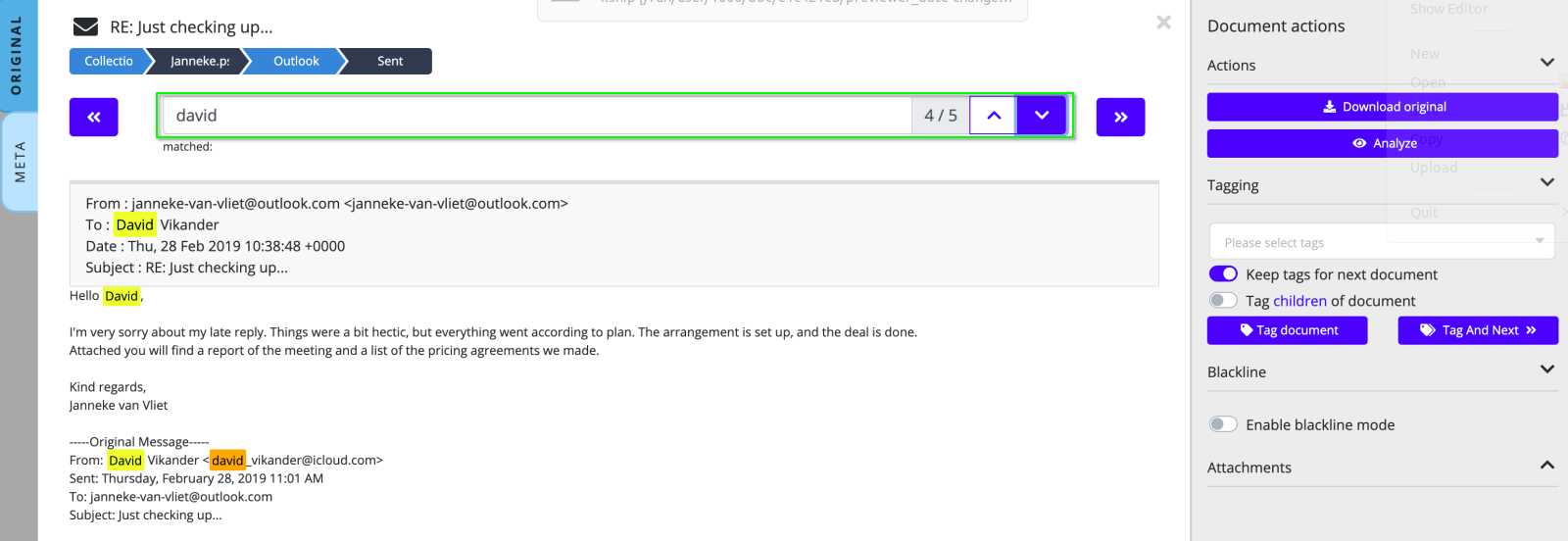
It’s also possible to search within the preview of the document. Searching in a document will highlight the keywords within the document.
The highlighted keywords will be yellow. The current highlighted keywords, which starts with the first match, will be orange. Clicking on the up- and down buttons next to the search bar will bring you to the next highlighted keyword. See image below for an example.
Comments (Tab)
Users can read, add, edit and delete comments attached to documents, depending on their permissions. To add a comment, open a document, click on the comments tab and add the comment. Users can filter on comments. You can find a filter “Comments By User” in the sidebar on the searchpage.