Look & Feel
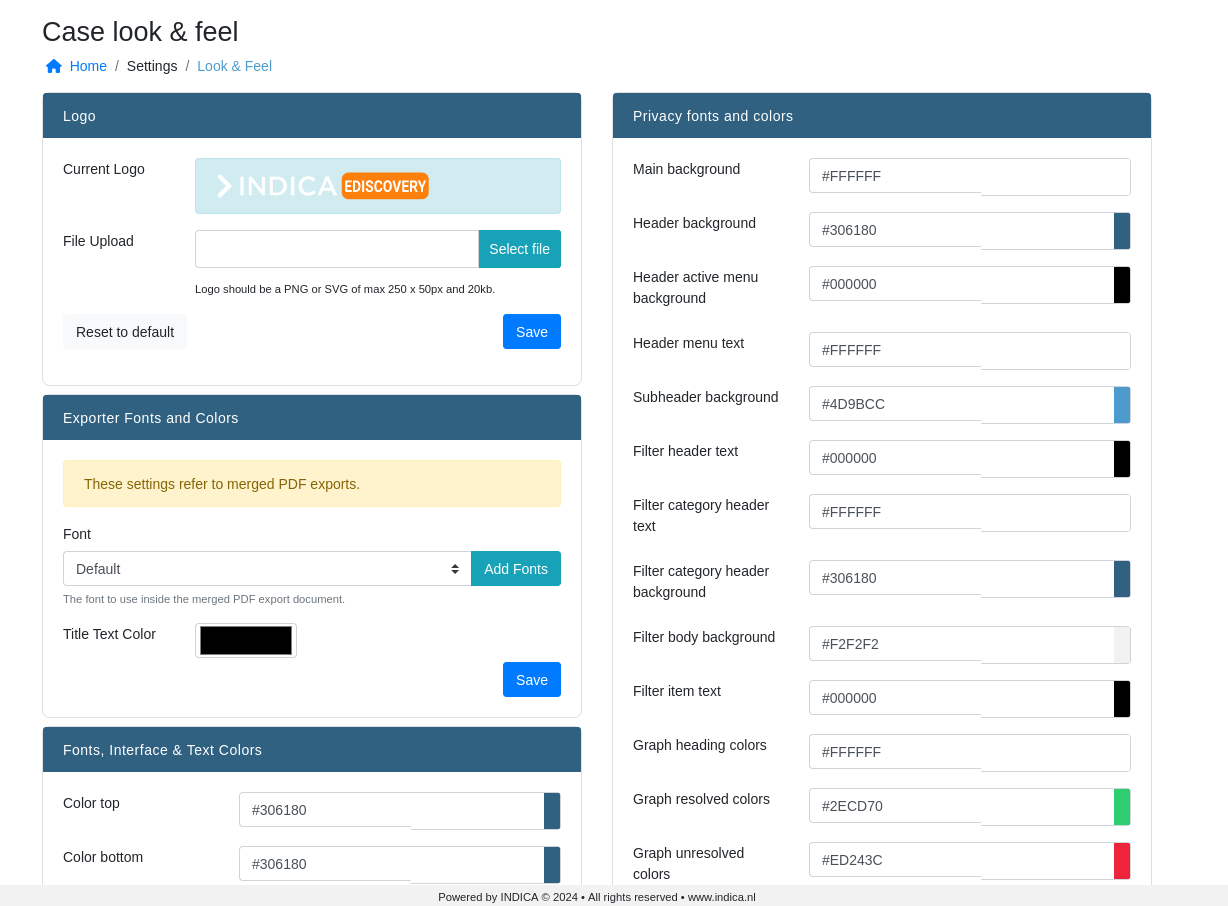
Within INDICA it’s possible to change the interface to the needs of your company. Within the manage interface, go to “Settings” within the menu and click on “Look & Feel”. You will get to a page that looks like the following picture:
Logo
It is possible to change the default INDICA logo to the logo of your company. This will change the logo in the menu at the top left. Just upload an image which meets te following requirements:
Image should be a PNG
Dimensions of max 250px x 50px
Max 20kb
Exporter Fonts and Colors
When creating merged PDF exports, you may want to change the font of the entire document and the color of the title page. You can do this with these settings.
You can also upload your own fonts. Just click the “Add Fonts” button, select a .ttf font file, and press Upload. The font that is uploaded will be available for selection immediately. If the font is kept as “Default”, the merged PDF export document will use a default sans-serif font.
The color selector only changes the color of the text on the title page, and not in the whole document.
Fonts, Interface & Text colors
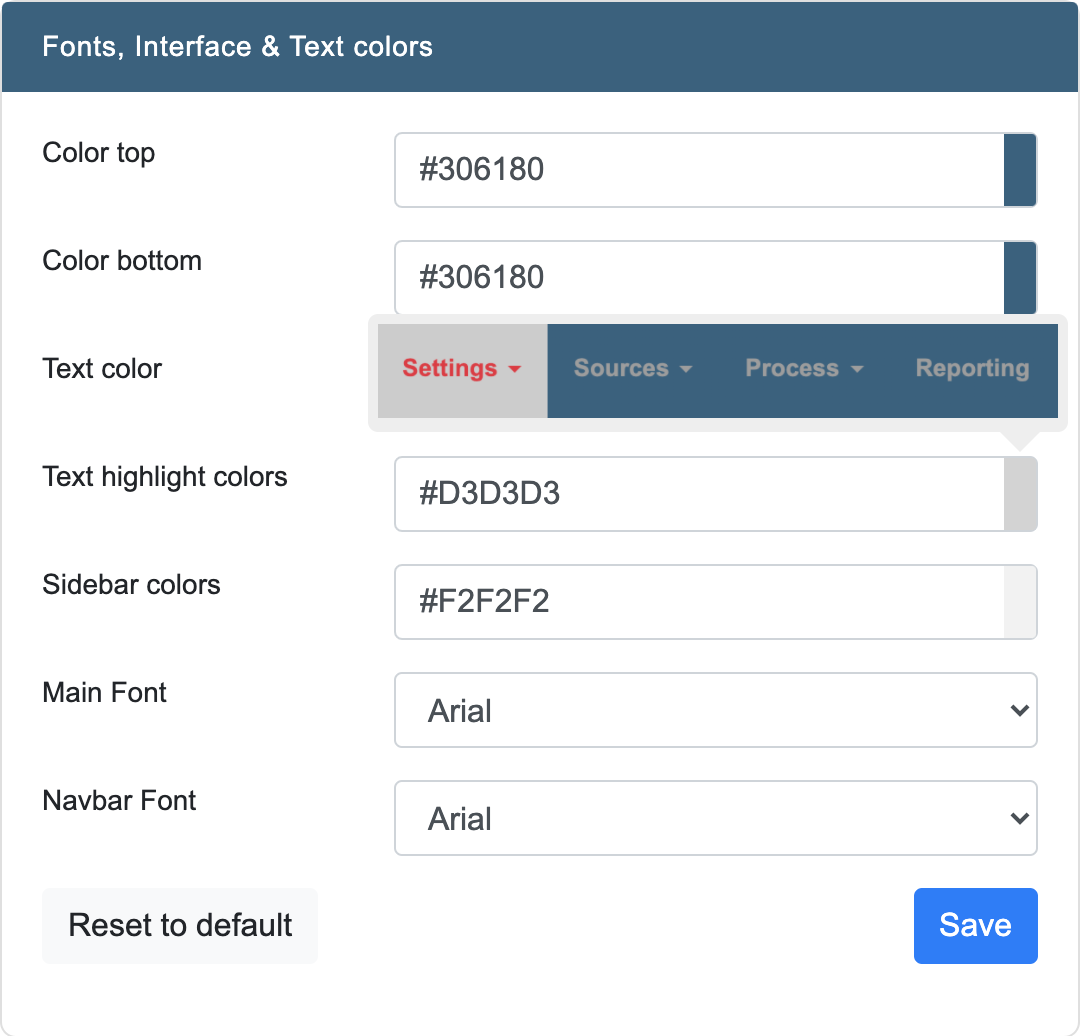
Within this panel it’s possible to change different colors and fonts within the interface. Just hover over one of the colors to see which part of the interface it will change. The red color within the screenshot indicates the part that will change.
See image below for an example:
Privacy fonts and colors
If Privacy is enabled within your case, you can also change the look and feel of the Privacy interface. Just like the panel “Fonts, Interface * Text colors”, hover over one of the colors to see which part of the interface it will change. The red color within the screenshot indicates the part that will change.