Case Manager Workflow
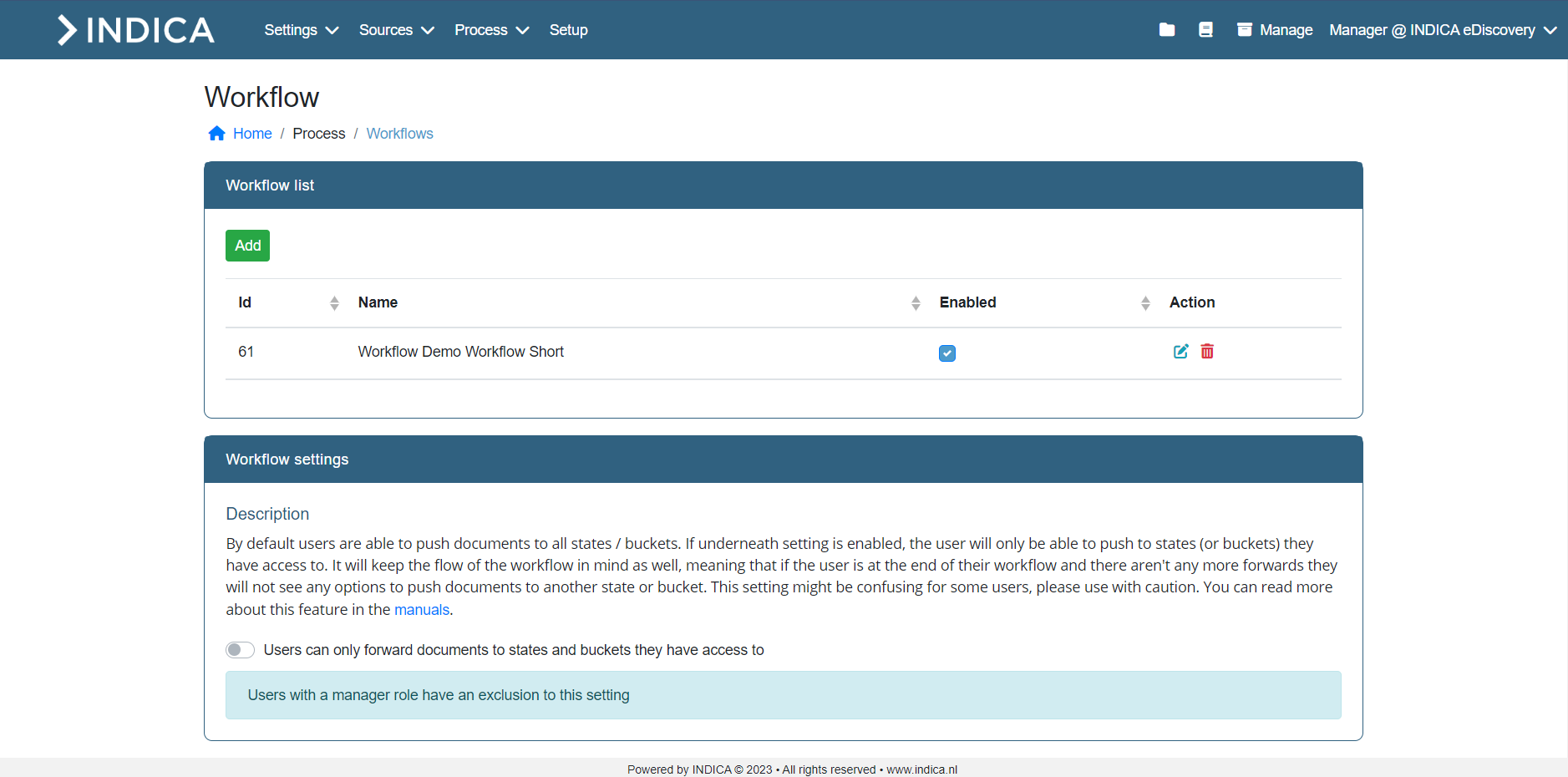
The workflow can be found within the manage interface underneath the Process menu item. Here you can see an overview of existing workflows and create, edit or delete workflows. There is also the option to only allow users to forward documents to states and buckets they have access to.
Create workflow
To create a workflow click the green Add button. This will bring you to a new page where you can do the following actions:
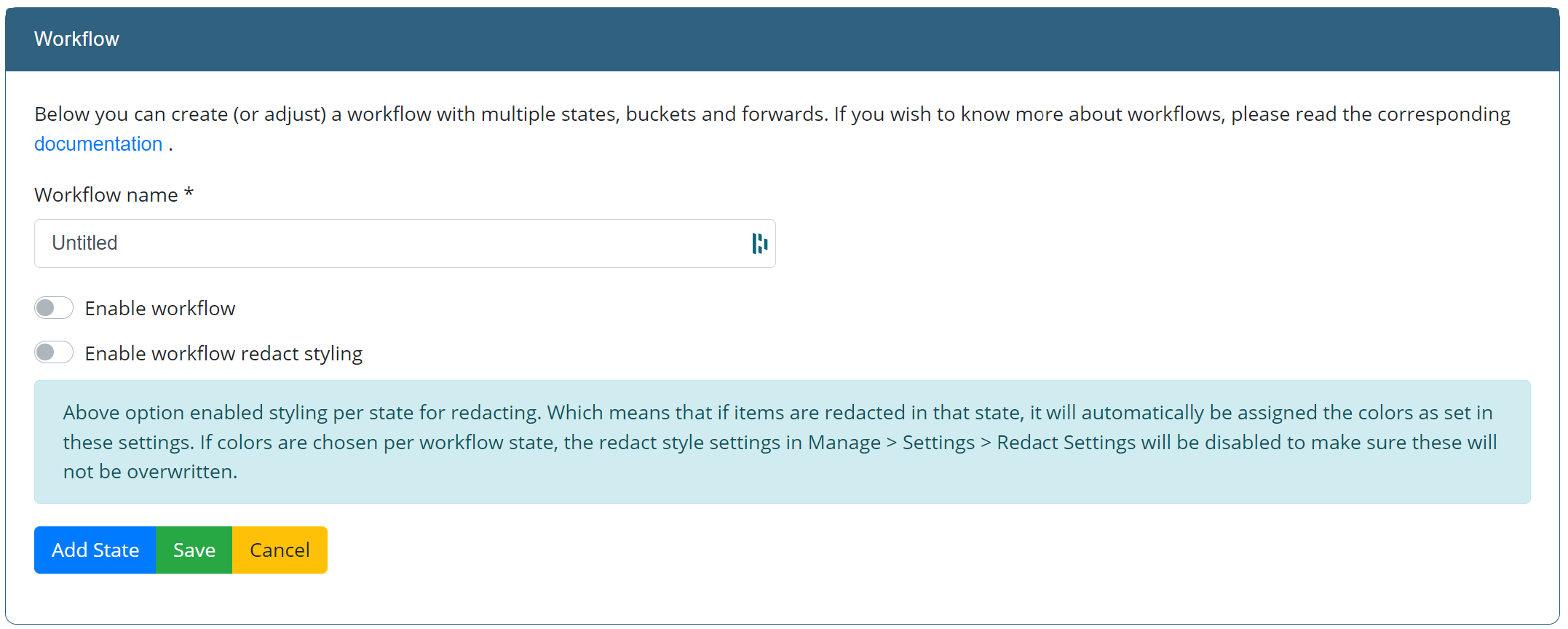
Workflow name
Give the workflow a descriptive name. Please do not forget to click the Save button.
Enable Workflow
To enable the workflow, use the switch ‘Enable workflow’. If this setting is disabled, the workflow will not show up to users. Please do not forget to click the Save button to save your changes.
Enable workflow redact styling
When ‘Enable workflow redact styling’ is switched on, the styling per state for redacting is enabled. This means that the documents that are moved to a state, will automatically get the redaction style as set in these settings. Important: If the redaction styles are set in the workflow settings, the redaction style settings in Manage > Settings > Redact Settings will be disabled.
Save Workflow
Make sure you save your changes by clicking the Save button, otherwise your changes will not be saved.
Cancel
Cancel all changes you made.
Add State
To add a workflow state, click the Add State button. Enter a descriptive name for the state and click Save. This will add a new state to your workflow. See all options within the chapter ‘State options’ below.
The first state in a workflow will always be the state where all documents without a defined state will be included.
State options
After a new state is added there are a few possibilities you can do with the new state. Important: click on Save after you’ve added or changed states.
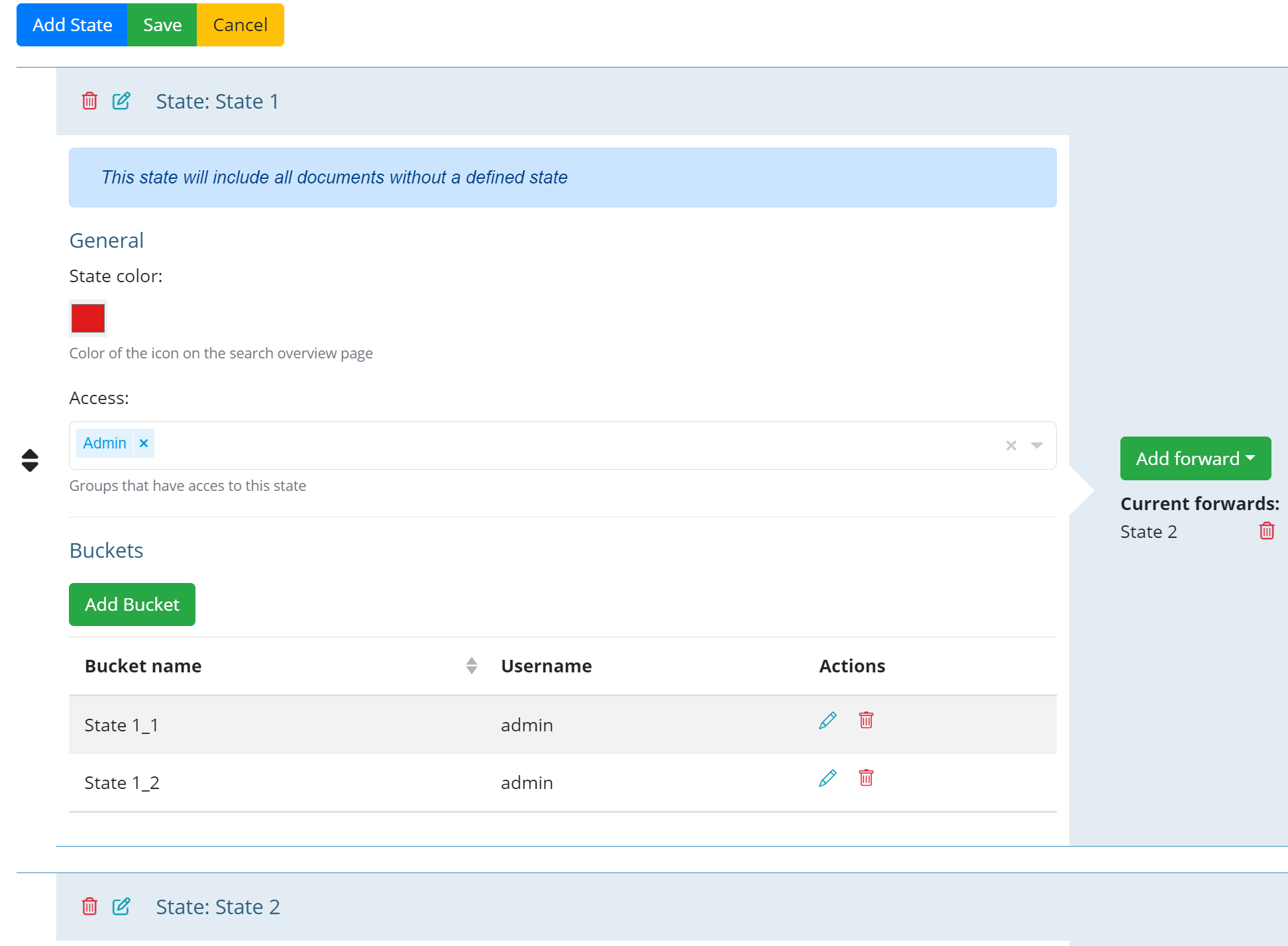
Assign colors
Assigning colors to your states will make the workflow overview a little easier to read. These colors are also used in the icons next to the state within the front-end.
Access
Select a group that has access to the state. Without a group selected the state will not be accessible to users.
Add bucket
Add bucket(s) to your state. Buckets are assignable to a specific user.
Add forward
Add a forward from one state to another. It’s possible to add it to the next workflow state in the ‘list’, or add a forward to a state further down.
Move state
It’s possible to move state in the ‘list’ of states. Just click the icon with the arrows pointing up and down to drag the state above or below another state.
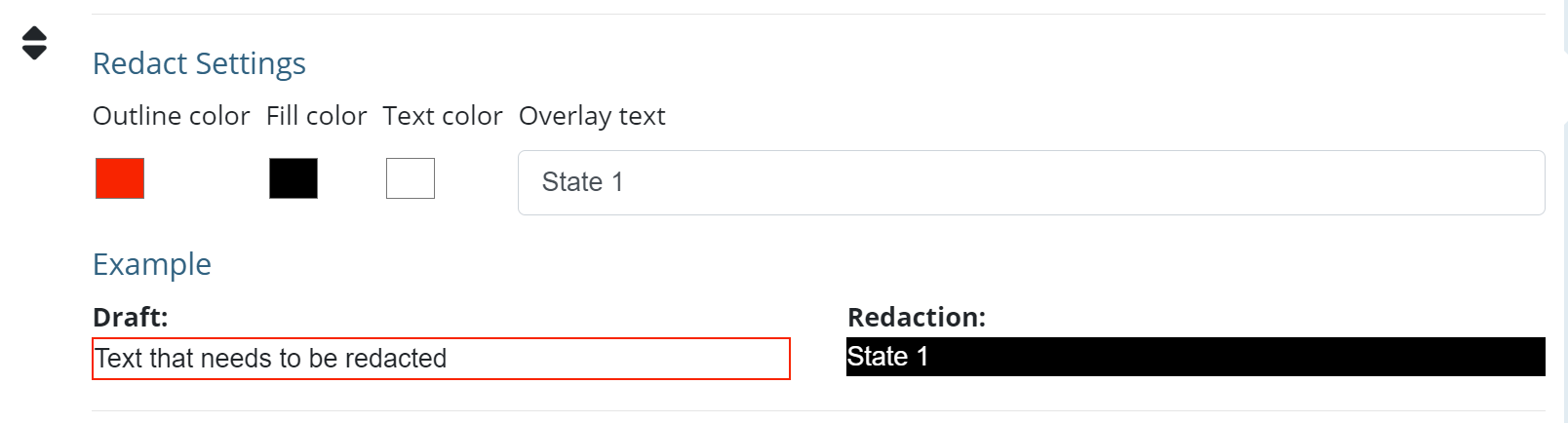
Redact styling
If workflow redact styling is enabled, this means that all states are “redact” states. When documents with concepts are moved to a redact state, the redactions are automatically applied. If this setting is enabled, you can add colors for redactions, like the outline for a text that need to be redacted, the background color of a redaction and the color of the text.
Note
Redaction states are only available with the advanced PDF viewer. The advanced PDF Viewer is not available on all INDICA appliances.
Visual representation workflow
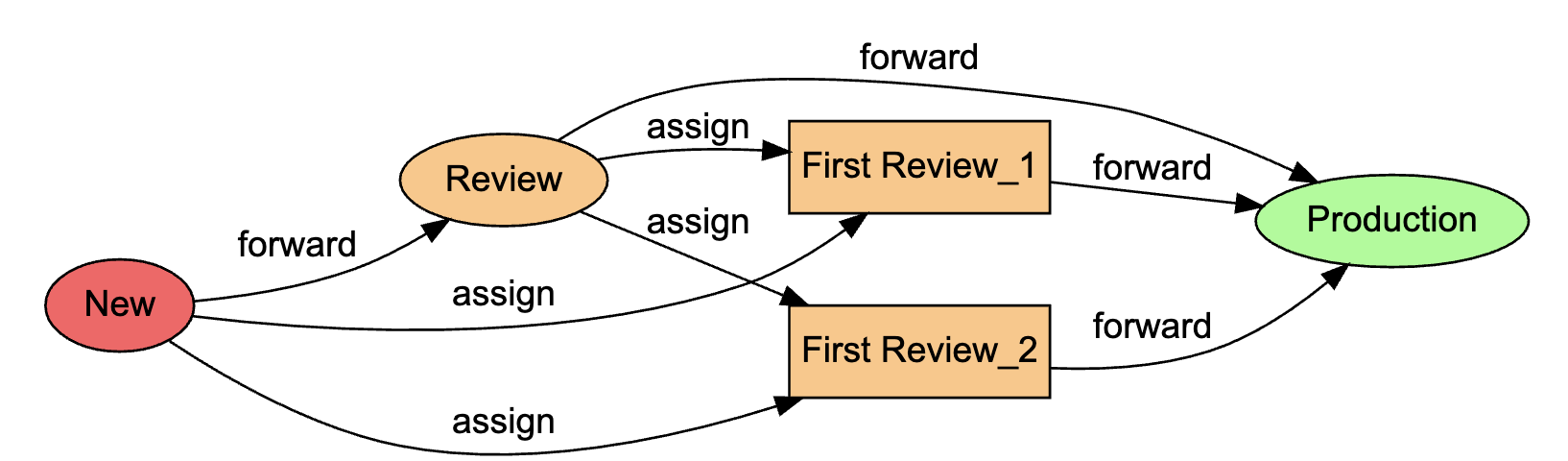
While adding states and buckets, assigning colors and forwards an overview will pop up at the bottom of the page. This is a visual representation of your current workflow.
Round shape
A round shape is a visual representation of a state. A state can have an arrow from either another state or another bucket. Both of them will have the text ‘forward’ next to the line of the forward arrow. If the state has a background color, a color has been assigned to that state.
Square shape
A square shape is a visual representation of a bucket. An arrow will point from a state to a bucket with the text assign next to line of the assign arrow. A bucket can also have a background color, but they inherit the color of the state they’re placed in.