Privacy Items
Viewing and Managing Privacy Items
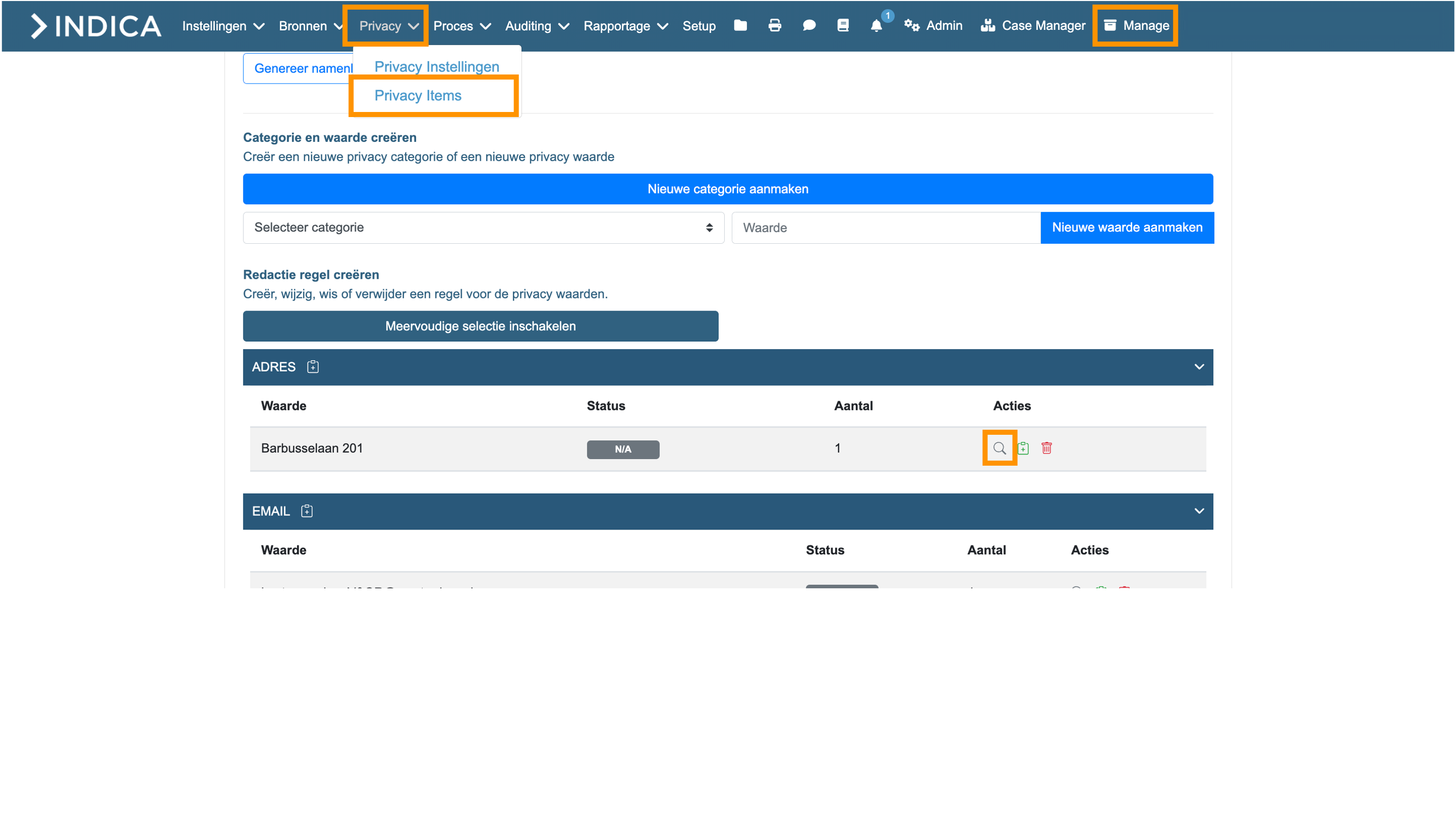
To view the privacy items for the entire case, click on Manage > Privacy > Privacy Items. From this page, you can also add or remove privacy items, and create new categories for new items at the case level. You can locate all documents associated with a specific privacy item by clicking the magnifying glass icon, which will redirect you to the search page.
Creating Rules and Exceptions
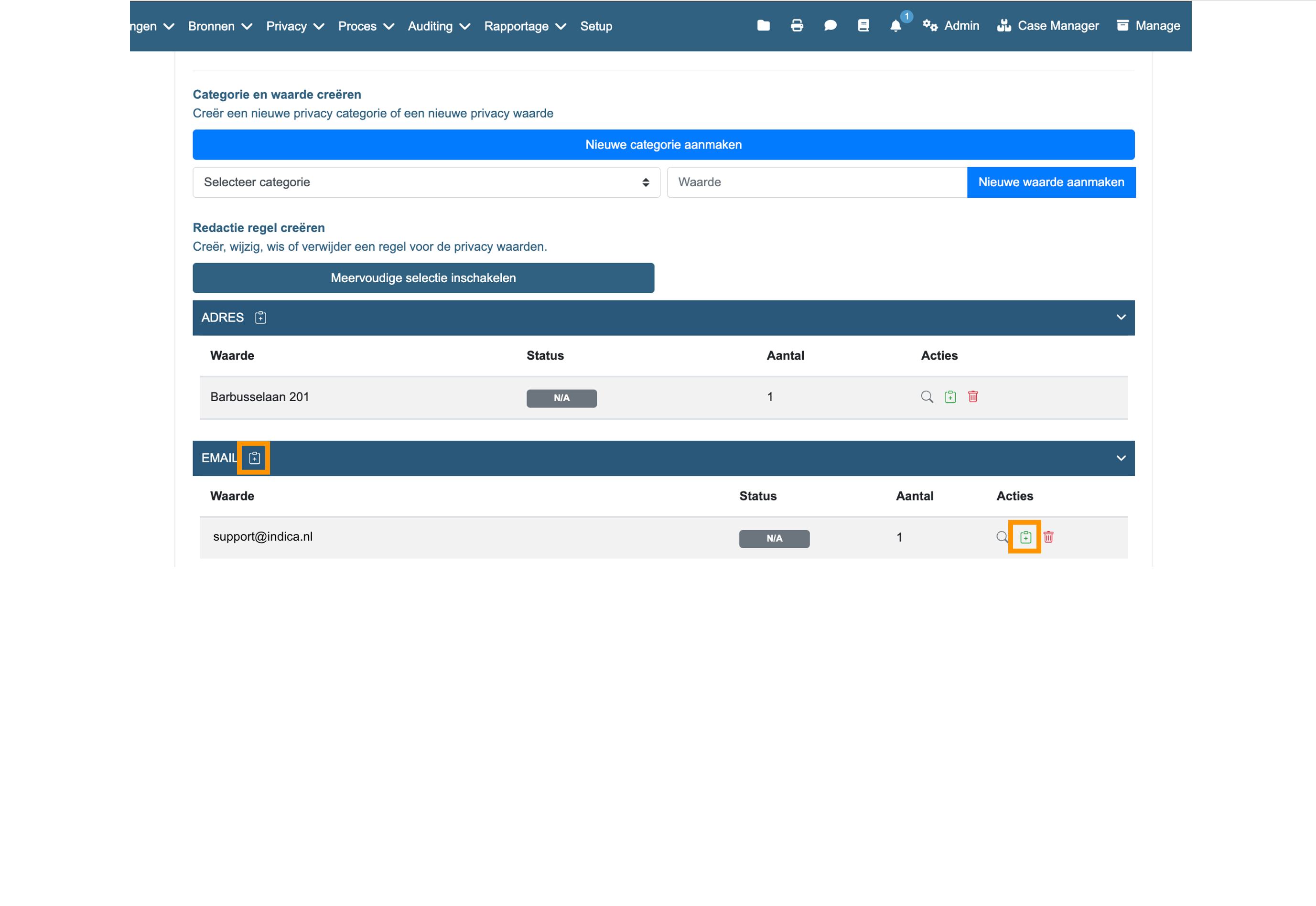
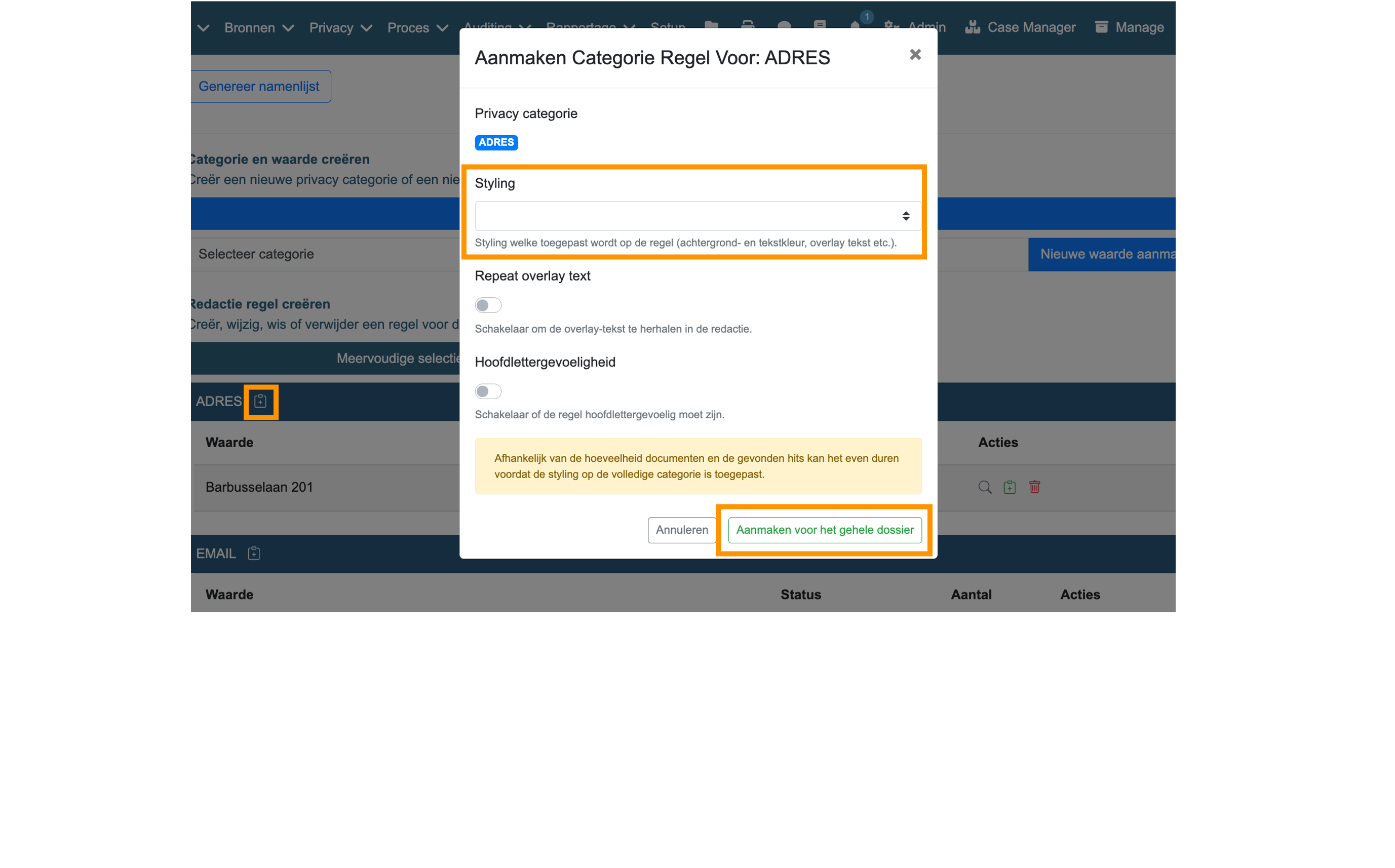
To redact documents, you first need to create rules. When creating rules, you can specify exception grounds for privacy items. You can create a rule for an entire category (e.g., address, phone number, postal code, etc.) or for each value (privacy item) individually by clicking on the + icon. If a value appears in multiple documents and requires different exception grounds based on the document, you can create rules at the document level in the “Privacy and Redaction Mode” in the previewer.
Advanced Privacy Item Management
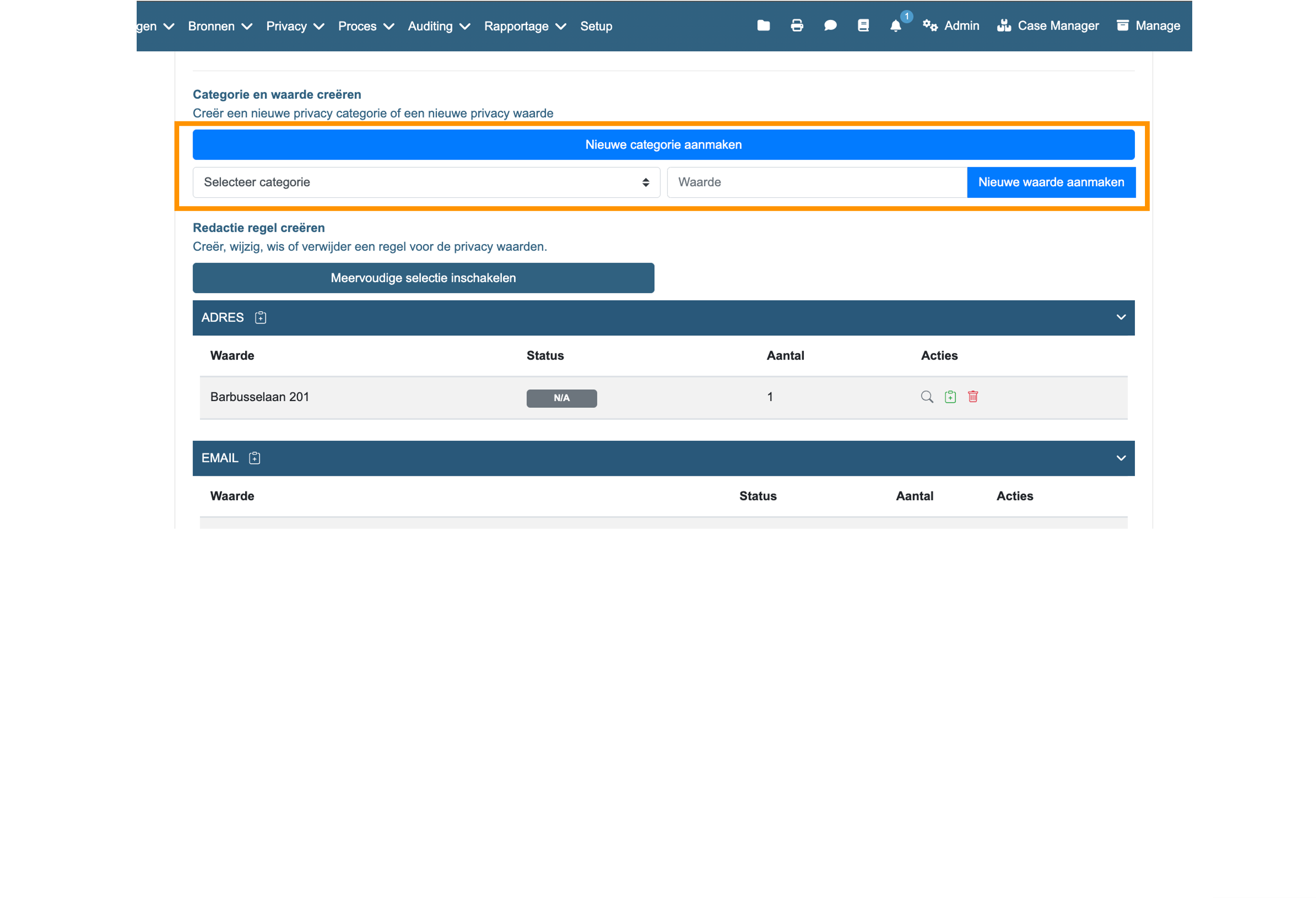
After clicking on the ‘Create Rule’ icon, a menu will appear where you can select an exception ground in the Styling menu. Click ‘Create for the entire case’ to create the rule. If a privacy item exists in the case but wasn’t found during the upload, you can add it by selecting a category > entering a value > creating a new value. If the category doesn’t exist, you can create a new category by clicking ‘Create new category’.
Creating and Editing Categories
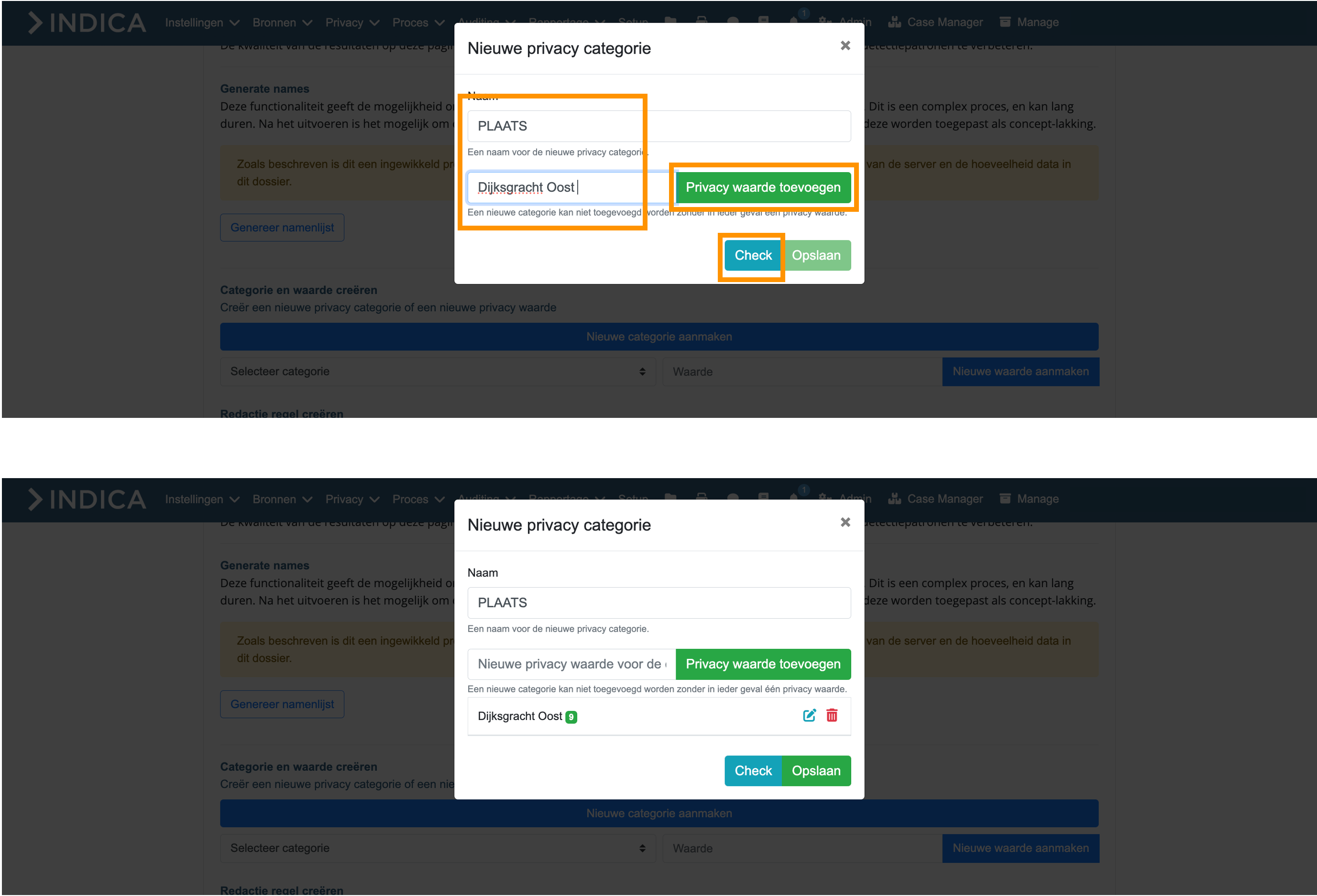
After clicking ‘Create new category’, you can name the new category and add a new privacy item. You can then click ‘Check’ to see how often the item appears within the case. Here, you can add one or more privacy values. Click ‘Save’ to create the new category with items. You cannot create a new category without adding values, and you must also create rules for the new privacy items.
Handling False Positives
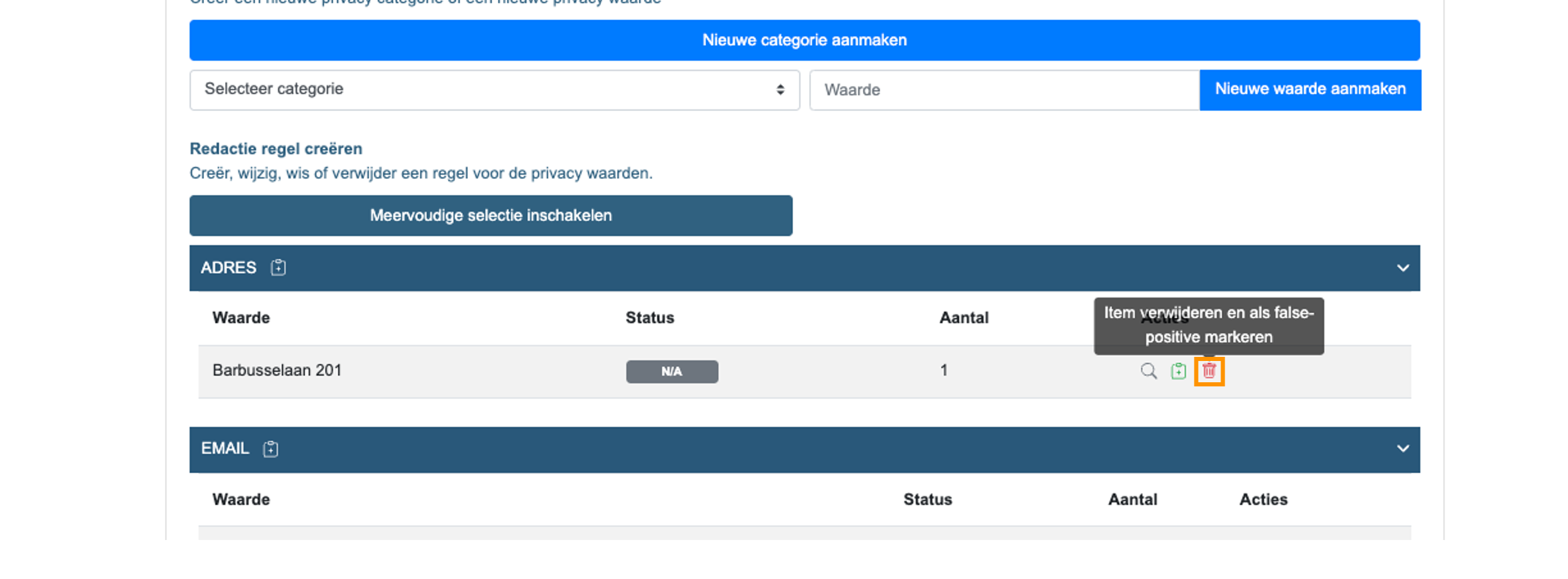
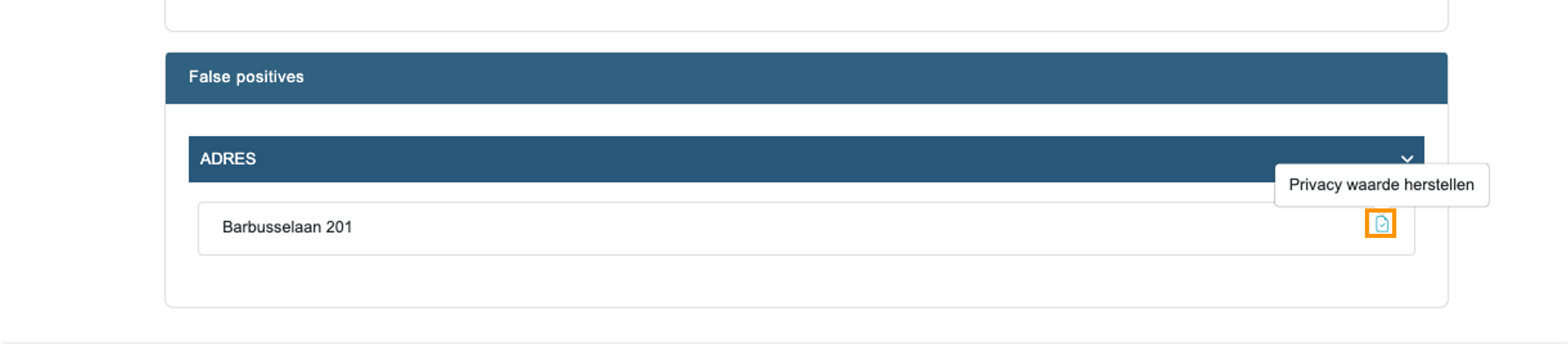
Possible false positives (results that shouldn’t be automatically redacted) can easily be removed by clicking the trash icon. The item will then appear at the bottom of the page. You can also restore a privacy item by clicking the blue checkmark in the ‘False positives’ tab.